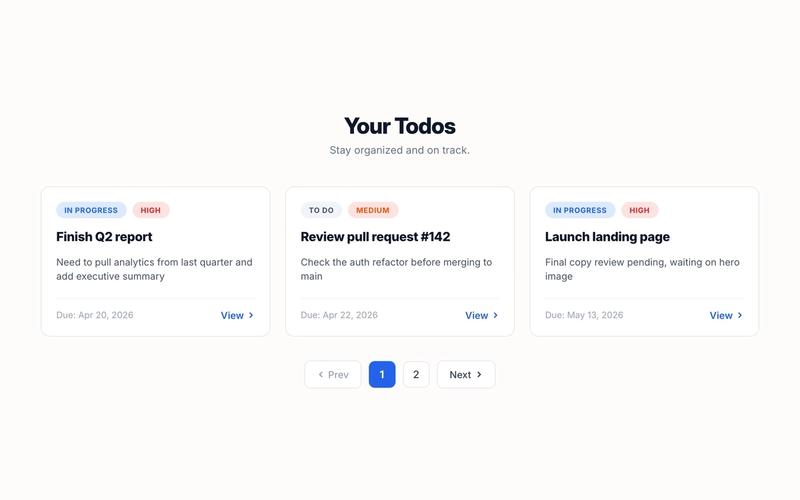
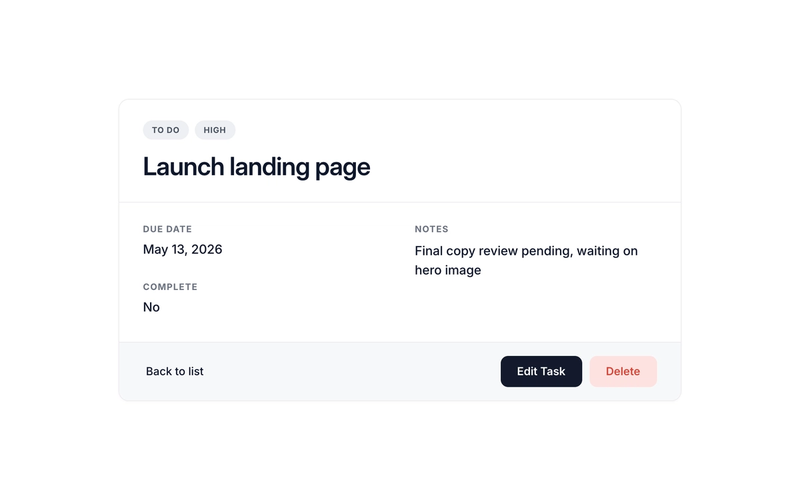
Pagination (Data Tables)

Back

Component Description(Generated by AI)

Required Elements

Five attribute markers must be present for pagination to work. Place them inside your list container.

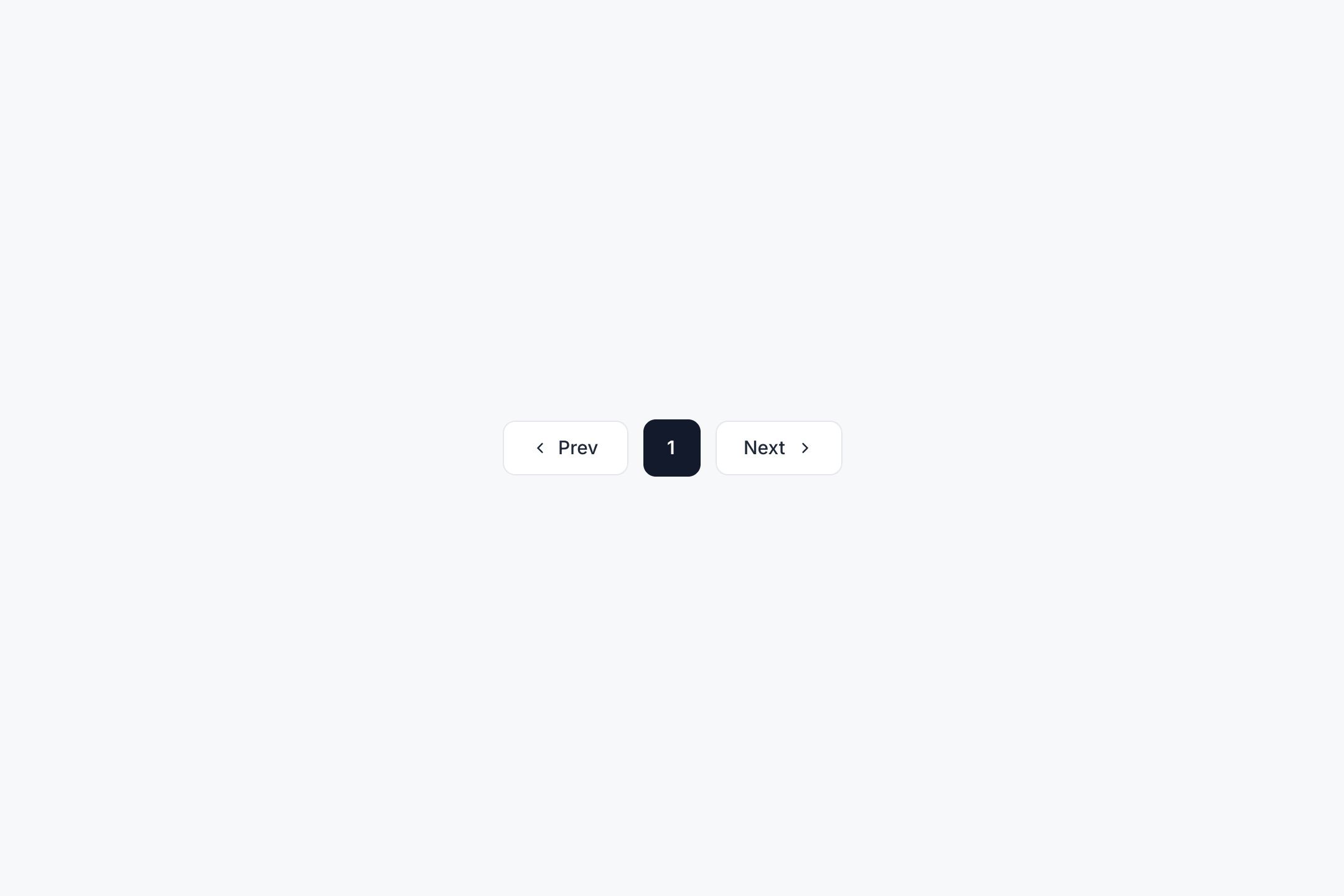
  • data-ms-code="list-pagination" — the outer wrapper for the whole pagination bar. The script hides this entire wrapper automatically when there's only one page
  • data-ms-code="list-prev" — the Previous link or button. The script attaches a click handler and dims it (opacity: 0.4; pointer-events: none) when the user is on page 1
  • data-ms-code="list-next" — the Next link or button. Same disabled treatment when the user is on the last page
  • data-ms-code="list-page-buttons" — the inner container that holds the numbered page buttons. The script appends cloned buttons here
  • data-ms-code="list-page-btn-template" — a single numbered button used as the template. The script clones it once per visible page, then hides the original. Always include style="display:none" on the template defensively

How the Script Renders Buttons

Instead of rendering one button per page (which gets unwieldy past ~20 pages), the dedicated scripts uses condensed pagination. The first page, last page, current page, and a configurable number of "sibling" pages around the current page are shown; the rest are replaced with … ellipses.

  • 5 pages, current = 3 → shows 1 2 [3] 4 5 (no condensing — too few pages)
  • 20 pages, current = 1 → shows [1] 2 3 4 5 … 20
  • 20 pages, current = 10 → shows 1 … 9 [10] 11 … 20
  • 20 pages, current = 20 → shows 1 … 16 17 18 19 [20]

The number of sibling pages is controlled by PAGINATION_SIBLINGS in the script's CUSTOMIZE block (default: 1). Raise it to 2 for a roomier 1 … 8 9 [10] 11 12 … 20, or set it to 0 for a tighter 1 … [10] … 20.

Classes the Script Adds Automatically

  • is-active — added to the button matching the current page so you can style it differently (bolder, filled background, etc.)
  • is-ellipsis — added to the … placeholders so you can style them as non-interactive (lighter color, no hover state, no border, no padding)

Suggested CSS for the Ellipsis

The script sets pointer-events: none and opacity: 0.5 inline by default. Add this CSS so hover effects don't flicker on the ellipsis:

.list_page-btn.is-ellipsis {
cursor: default;
background: transparent;
border-color: transparent;
pointer-events: none;
}
.list_page-btn.is-ellipsis:hover {
background: transparent;
}

Minimum HTML

<div data-ms-code="list-pagination" class="list_pagination">

<a data-ms-code="list-prev" href="#" class="list_page-btn">Prev</a>

<div data-ms-code="list-page-buttons" class="list_page-buttons">
<a data-ms-code="list-page-btn-template" href="#" class="list_page-btn" style="display:none">1</a>
</div>

<a data-ms-code="list-next" href="#" class="list_page-btn">Next</a>

</div>

Common Mistakes

  • The template button is outside list-page-buttons — the script appends clones into the page-buttons container, so the template must be a child of it
  • The template has no text content or visible label — make sure it has either direct text (e.g. 1) or a <div> child that holds the page number
  • Forgetting style="display:none" on the template — without it, the unhidden template flashes briefly on page load before the script hides it
  • Hand-coding multiple page buttons in the HTML — only one template is needed; the script clones it for each page
  • Putting the pagination bar outside the list container — it must live inside the same container the script initializes (list-container for tables, ms-code-table="..." wrapper for the card list)

Where Pagination Is Used

  • Card List View — pagination lives inside the ms-code-table wrapper, alongside the list-container
  • Table List View — pagination lives inside the data-ms-code="list-container" wrapper, after the <table>
  • Kanban Board — does not use pagination because all records are loaded into columns at once
  • Custom lists — drop the pagination block inside any container that the list script initializes; the same attributes work everywhere

Related Components

More components you might find useful

Edit Data Table Records
View Component
Data Tables

Edit Data Table Records

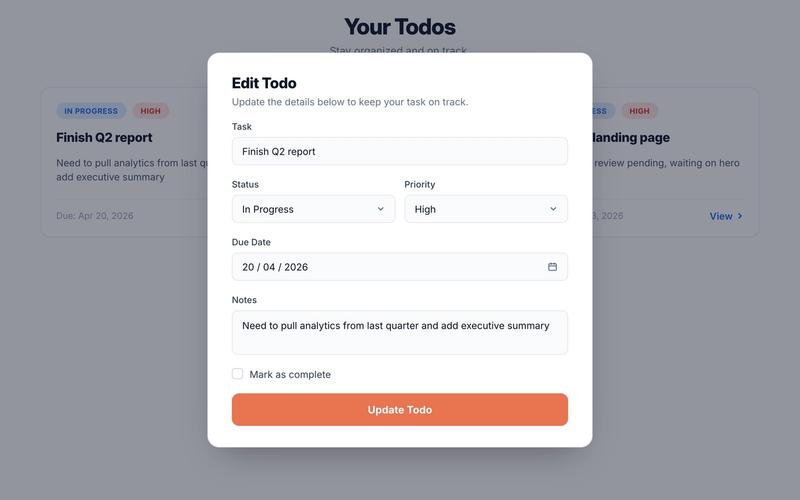
This component requires an accompanying script. Update the following attribute values in the HTML to match your data table and fields before use: ms-code-table — set to your data table name (default: "todos") ms-code-id-param — set to the URL query parameter that holds the record ID (default: id) ms-code-owner-field — set to the field that stores the member ID ms-code-redirect — (optional) set to the page URL to redirect after a successful update data-ms-field on each input — set to the matching field key in your table ms-field on each input — set to the field type: text, number, date, checkbox, html, image, or link Look for /* CUSTOMIZE */ comments in the script for additional options Linking from the Card List View The Card List View component generates a link on each card using ms-code-detail-page and ms-code-id-param. To have cards link to this edit page: Set ms-code-detail-page on the Card List View wrapper to the URL of your edit page (e.g. /edit) Make sure ms-code-id-param matches on both components (default: id) The card link will resolve to something like /edit?id=abc123, and this component reads that ID on load. Key Features Reads the record ID from the URL query string and fetches the existing record on page load Pre-populates all form fields with saved values, handling every ms-field type: text and html set the input value, number sets the value directly, date converts ISO to YYYY-MM-DD for the date picker, checkbox sets the checked state, image and link set URL values Updates the record in place via Memberstack's updateDataRecord API on submit Collects fields on submit with full type awareness: number parses to float, date converts to ISO, checkbox reads checked state, text/html/image/link pass raw strings Authenticates the current member and stamps the owner field on every save Shows loading, success, and error states with smooth fade-in transitions Gracefully handles missing or deleted records with an inline error message Supports optional redirect after successful update Potential Use Cases Any Memberstack-powered site that needs a user-facing edit form tied to a data table Task managers, project trackers, CRMs, support ticket systems, inventory updates, and more Swap the table name and fields to match any data model — the script handles the rest
Create Data Table Record
View Component
Data Tables

Create Data Table Record

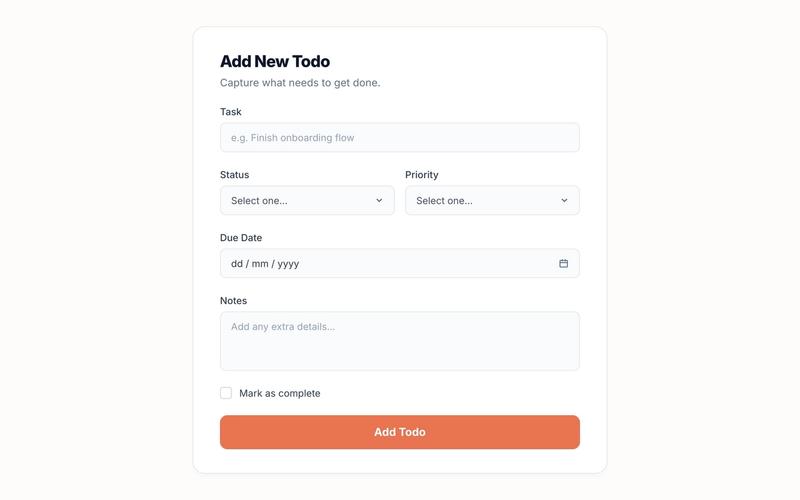
This component requires an accompanying script. Update the following attribute values in the HTML to match your data table and fields before use: ms-code-table — set to your data table name (default: "todos") ms-code-owner-field — set to the field that stores the member ID ms-code-redirect — (optional) set to the page URL to redirect after success data-ms-field on each input — set to the matching field key in your table ms-field on each input — set to the field type: text, number, date, checkbox, html, image, or link Look for /* CUSTOMIZE */ comments in the script for additional options Key Features Auto-binds form inputs to data table columns via data attributes Handles every ms-field type when collecting values: text and html pass raw strings, number parses to float, date converts to ISO, checkbox reads the checked state, image and link pass URLs Authenticates the current member and stamps owner + creation date on every record Shows loading, success, and error states with smooth fade-in transitions Prevents Webflow's native form handler from hiding the form Supports optional redirect after successful creation Potential Use Cases Any Memberstack-powered site that needs a user-facing create form tied to a data table Task managers, project trackers, CRMs, support ticket systems, inventory forms, and more Swap the table name and fields to match any data model — the script handles the rest
View Data Table Records
View Component
Data Tables

View Data Table Records

This component requires an accompanying script. Update the following attribute values in the HTML to match your data table and fields before use: ms-code-table — set to your data table name (on both the wrapper and the template; default: "todos") ms-code-sort — set to the field and direction for sorting (e.g. created_at:desc) ms-code-per-page — set to the number of cards to show per page ms-code-detail-page — set to the URL of the detail/edit page (e.g. /edit) ms-code-id-param — set to the URL query parameter name for the record ID (default: id) ms-code-owner-field — (optional) set on the template to filter records by the logged-in member data-ms-field on each display element — set to the matching field key in your table ms-field on each display element — set to the field type: text, number, date, checkbox, html, image, or link Key Features Fetches all records from the specified Memberstack data table on page load Renders a card for each record using a cloneable template pattern Binds data-ms-field elements to record values with full type-aware rendering: text sets textContent, number formats with locale separators, date formats to a readable string, checkbox displays "Yes" or "No", html sets innerHTML, image sets src, link sets href Generates detail page links with the record ID as a query parameter Client-side pagination with configurable page size Numbered page buttons, previous/next navigation with disabled state styling Supports sorting by any field in ascending or descending order Optional owner filtering to show only the logged-in member's records Four distinct UI states: loading, populated list, empty, and error Retry button on error state to re-attempt the fetch Potential Use Cases Any Memberstack-powered site that needs a browsable record list with card layout Task managers, project dashboards, CRM contact lists, product catalogs, and more Swap the table name and fields to match any data model — the script handles the rest
Record Details Page (Data Tables)
View Component
Data Tables

Record Details Page (Data Tables)

This component requires an accompanying script. Update the following attribute values on the detail wrapper to match your data table: ms-code-table — your data table name (default: "todos") ms-code-id-param — URL query parameter name for the record ID (default: id). Must match what the linking list view uses ms-code-owner-field — (optional) field that stores the owner's member ID; if set, the page only shows the record when the current member matches; otherwise the error state appears ms-code-edit-page — (optional) URL of the edit page (e.g. /edit). The script populates the Edit button's href with this URL plus ?id=... ms-code-delete-page — (optional) URL of the delete confirmation page (e.g. /delete). The script populates the Delete button's href the same way data-ms-field on each display element — set to the matching field key in your table ms-field on each display element — set to the field type: text, number, date, checkbox, html, image, or link Linking from the Card List, Table List, or Kanban The list-style components (Card List, Table List, and Kanban Board) generate per-record links using ms-code-detail-page and ms-code-id-param. To send users to this detail page when they click a card, row, or kanban card: Set ms-code-detail-page on the list/table/kanban container to the URL of this detail page (e.g. /detail) Make sure ms-code-id-param matches on both the list and the detail container (default: id) Inside each card or row, include an element with data-ms-code="detail-link" — the list scripts populate its href automatically with the record ID The card link will resolve to something like /detail?id=abc123, and this component reads that ID on load. Recommended Page Structure The detail page sits at the center of a typical CRUD flow. A clean, conventional setup looks like this: /todos — Card List or Table List view /board — Kanban Board /detail — Record Detail page (this component) /edit — Edit form /delete — Delete confirmation /new — Create form Wire each list-style page to the detail page via ms-code-detail-page="/detail". On the detail page, point Edit and Delete to their dedicated pages via ms-code-edit-page="/edit" and ms-code-delete-page="/delete". The same record ID flows through every URL as the ?id=... query parameter, so the chain works end-to-end without any custom JS. Page names are arbitrary. The slugs above (/detail, /edit, /delete, etc.) are conventions, not magic strings. Name your pages anything — /task-overview, /aufgabe-bearbeiten, /dashboard/tasks/view, etc. — and just plug those URLs into the matching ms-code-*-page attributes. The only values that actually need to line up across pages are ms-code-table (must match your data table key) and ms-code-id-param (must use the same query parameter name on every page so the record ID hands off correctly). Key Features Reads the record ID from the URL on load and fetches the record via getDataRecord Type-aware field rendering: text sets textContent, number formats with locale separators, date formats to a readable string, checkbox displays "Yes" or "No", html sets innerHTML, image sets src or background-image, link sets href Optional ownership check via ms-code-owner-field — non-owners see the error state instead of someone else's record Auto-generates Edit and Delete button URLs by combining ms-code-edit-page / ms-code-delete-page with the current record ID — no JS needed to wire navigation Three UI states: loading, populated content, and error (which doubles as "not found" and "not your record") Handles 429 rate-limit responses automatically with exponential-backoff retries Multiple detail containers supported on the same page if needed (rare, but it works) Action Buttons The default HTML includes three action buttons in the footer of the content block: Back to list — a plain <a href="/todos"> link; update the href to your list page Edit — has data-ms-code="edit-link"; the script populates the href with the edit page URL plus ?id=... Delete — has data-ms-code="delete-link"; the script populates the href the same way Remove any button you don't need by deleting it from the HTML. To skip the Edit or Delete URL population, simply omit ms-code-edit-page or ms-code-delete-page from the wrapper. Full Attribute Reference Three categories of attributes drive this component. Use this section as a complete spec when wiring up the markup. 1. Container Attributes (on the detail wrapper) data-ms-code="detail-container" — required. Marks this element as the detail wrapper. The script initializes one instance per matching element. ms-code-table — required. The Memberstack data table key to fetch from. Example: ms-code-table="todos". ms-code-id-param — optional, defaults to id. URL query parameter name that holds the record ID. Example: ms-code-id-param="recordId". ms-code-owner-field — optional. Field key that stores the owner's member ID. When set, the page only shows the record if the current member matches; non-owners see the error state. Example: ms-code-owner-field="owner". ms-code-edit-page — optional. URL of the edit page. Used to populate the Edit button's href. Example: ms-code-edit-page="/edit". ms-code-delete-page — optional. URL of the delete confirmation page. Used to populate the Delete button's href. Example: ms-code-delete-page="/delete". 2. Element Role Attributes (data-ms-code values inside the container) detail-loading — recommended. Shown while fetching the record. Add style="display:none" to the element so it doesn't flash on page load. detail-error — recommended. Shown if the fetch fails, the record can't be found, or the ownership check rejects the user. Add style="display:none". detail-content — required. Wraps everything that should appear once the record loads. The script reveals it after populating fields. Add style="display:none". edit-link — optional. An <a> button whose href the script will populate as {edit-page}?{id-param}={recordId}. Leave href="#" as a placeholder. delete-link — optional. Same behavior as edit-link, but uses ms-code-delete-page. Leave href="#" as a placeholder. 3. Field Display Attributes Use both data-ms-field (which field) and ms-field (how to render it) on each display element. ms-field defaults to text if omitted. ms-field="text" (default) — sets the element's textContent to the field value. Use on any text element: <span>, <p>, <h1>–<h6>, <div>. Example: <h1 data-ms-field="task">Loading…</h1> ms-field="number" — parses the value as a float and formats with locale separators (e.g. 1234 → "1,234"). Use on any text element. Example: <span data-ms-field="count" ms-field="number">0</span> ms-field="date" — parses the ISO date string and formats it with toLocaleDateString using DATE_OPTIONS from the script (default: "Apr 16, 2026"). Use on any text element. Example: <p data-ms-field="dueDate" ms-field="date">—</p> ms-field="checkbox" — displays the customizable BOOLEAN_TRUE / BOOLEAN_FALSE labels (default: "Yes" / "No") based on the field's truthiness. Use on any text element. Example: <span data-ms-field="is_complete" ms-field="checkbox">No</span> ms-field="html" — sets innerHTML to the field value. Use only with trusted content — does not sanitize. Use on any container: <div>, <article>, etc. Example: <div data-ms-field="bio" ms-field="html"></div> ms-field="image" — if on an <img>, sets src. On any other element, sets style.backgroundImage to url(value). Use <img> for inline images, or any <div> for background-image use cases (cards, hero banners, avatars). Example: <img data-ms-field="cover" ms-field="image" src="" alt=""> ms-field="link" — if on an <a>, sets href. On any other element, sets textContent as a fallback. Use <a> for clickable links. Example: <a data-ms-field="website" ms-field="link" href="#">Visit</a> Field display elements can live anywhere inside data-ms-code="detail-content". The script walks every [data-ms-field] descendant and populates each one based on its ms-field type. Default Values Whatever placeholder text or attribute value you put in the HTML stays visible until the script populates it. Use this as fallback content for fields that may be empty or null in the data — the script skips populating fields whose value is null or undefined. Potential Use Cases Any Memberstack-powered site that needs a per-record detail view as a navigation hub Task detail pages, project briefs, customer profiles, order summaries, content previews, member dashboards, and more Swap the table name and fields to match any data model — the script handles the rest