Integration GuideCommunity
AWS S3 File Uploader
Enable browser-to-S3 file uploads for your members. Complete guide for setting up S3, IAM, and API Gateway for secure file management.


- Setup time
- 20-30 min
- Cost
- Free tier eligible
- AWS services
- S3 + IAM + API Gateway
Uploads land straight in your bucket.




How It Works
Browser uploads go through API Gateway to S3. No server needed.
Browser
API Gateway
S3 Bucket
Phase 1
AWS Storage Setup
1
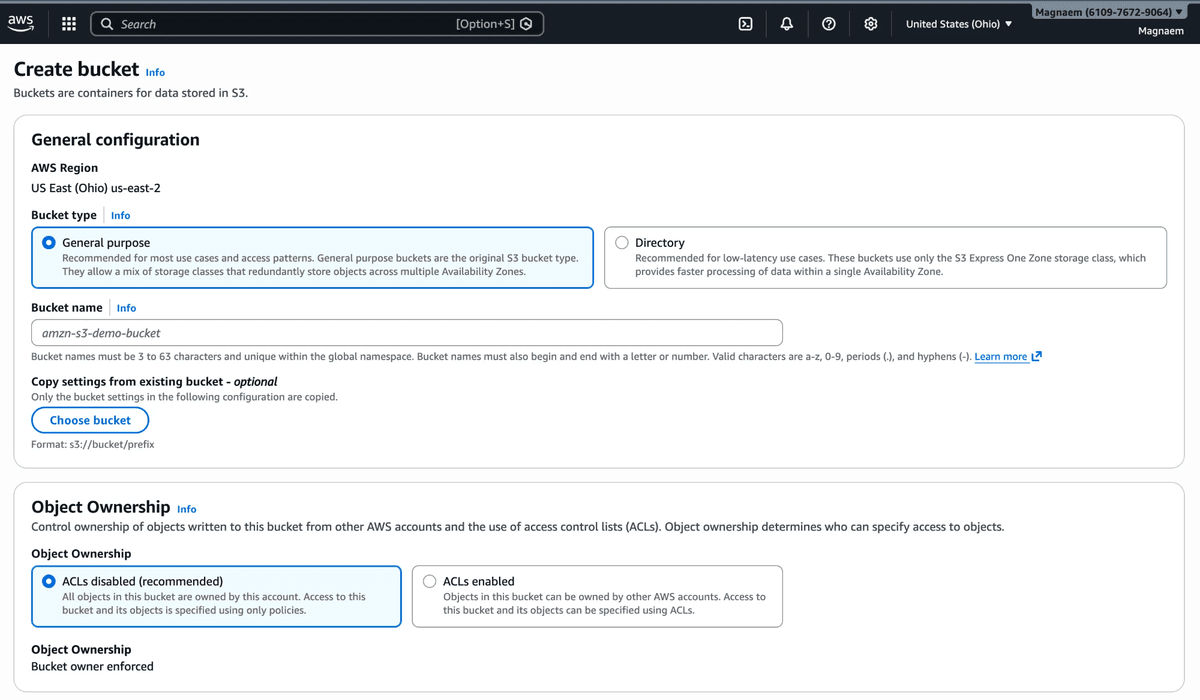
Create an S3 Bucket
- Go to AWS S3 Console
- Click Create bucket
- Enter a unique bucket name
- Uncheck Block all public access (acknowledge the warning)
- Click Create bucket
2
Enable Versioning
- Open your bucket
- Go to Properties tab
- Find Bucket Versioning and click Edit
- Select Enable and save

3
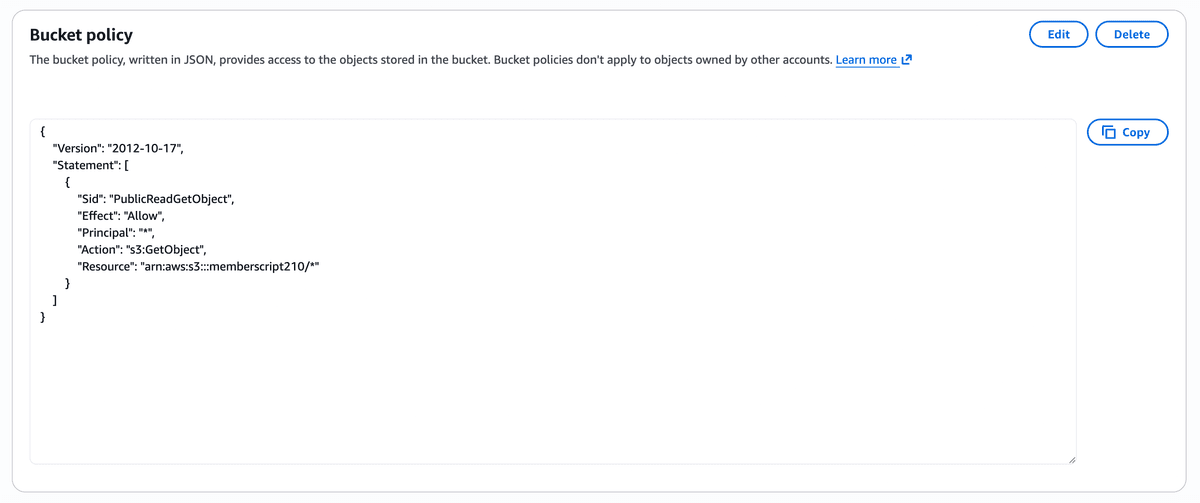
Add Bucket Policy
Go to Permissions tab → Bucket policy → Edit
Bucket Policy JSON
{
  "Version": "2012-10-17",
  "Statement": [
    {
      "Sid": "PublicReadGetObject",
      "Effect": "Allow",
      "Principal": "*",
      "Action": "s3:GetObject",
      "Resource": "arn:aws:s3:::YOUR-BUCKET-NAME/*"
    }
  ]
}
4
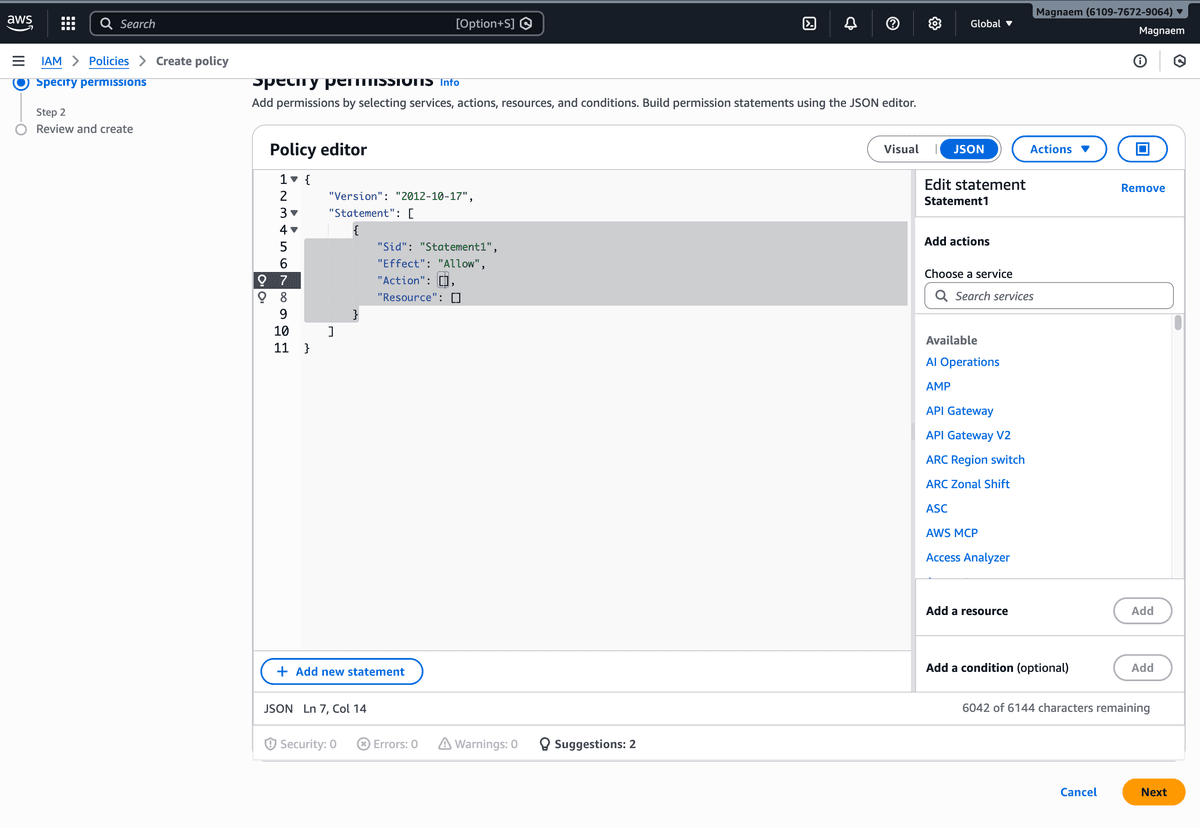
Create IAM Policy
- Go to IAM Console → Policies
- Click Create policy → JSON tab
- Paste the policy below
IAM Policy JSON
{
  "Version": "2012-10-17",
  "Statement": [
    {
      "Effect": "Allow",
      "Action": ["s3:PutObject", "s3:DeleteObject"],
      "Resource": "arn:aws:s3:::YOUR-BUCKET-NAME/*"
    }
  ]
}
5
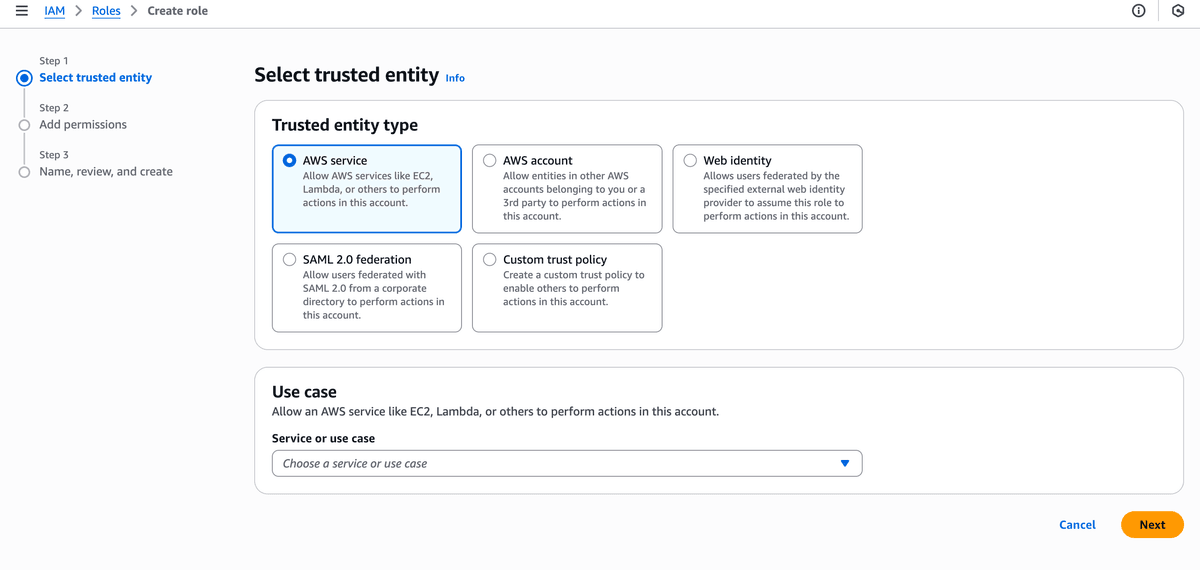
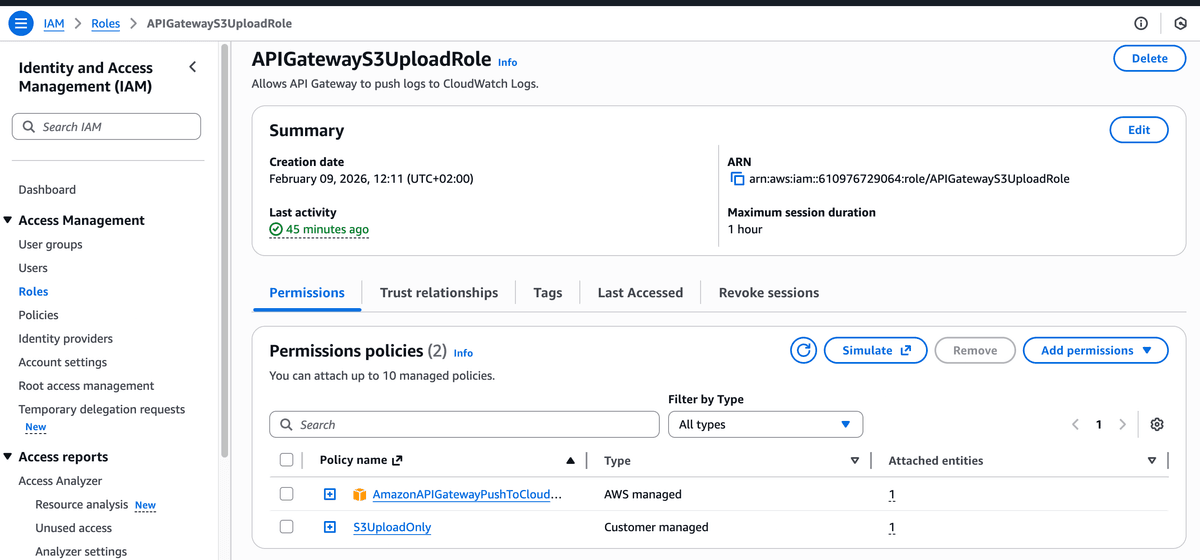
Create IAM Role
- Go to Roles → Create role
- Select AWS service → API Gateway
- Attach your S3 policy
- Name:
S3UploadRole
Phase 2
API Gateway Setup
6
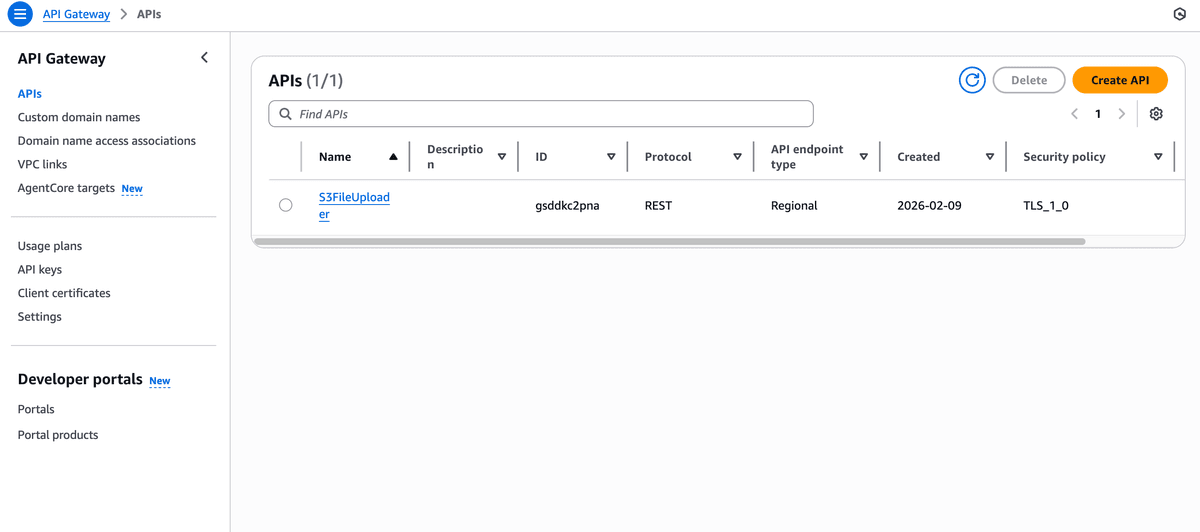
Create REST API
- Go to API Gateway Console
- Click Create API
- Choose REST API (not HTTP API)
- Name:
S3FileUploadAPI

7
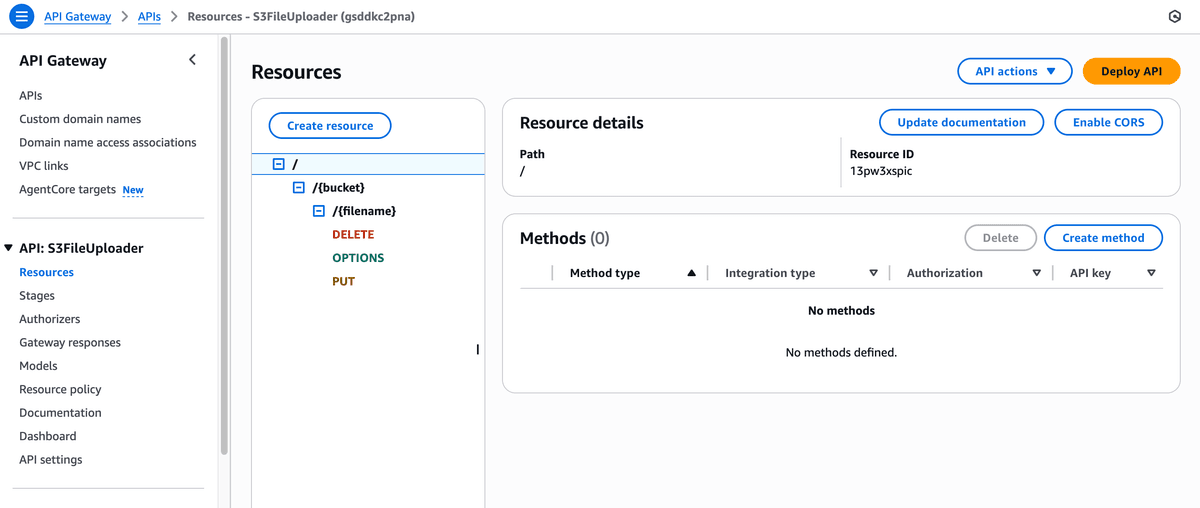
Create Resource Path
- Click Create Resource
- Resource path:
{folder} - Create child resource:
{filename}
8
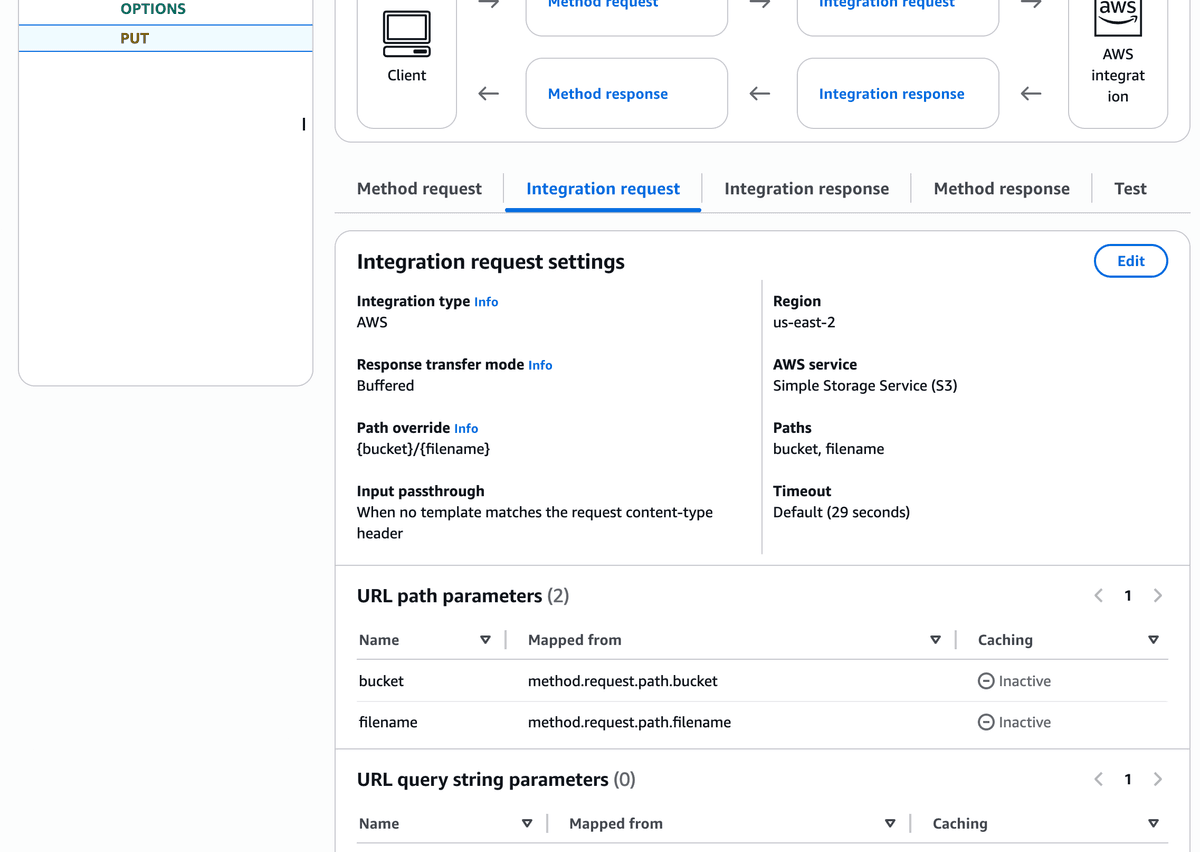
Create PUT Method
- Select
{filename}resource - Click Create Method → PUT
- Integration type: AWS Service
- AWS Service: S3
- HTTP method: PUT
- Path override:
YOUR-BUCKET/{folder}/{filename} - Execution role: Paste your IAM role ARN
9
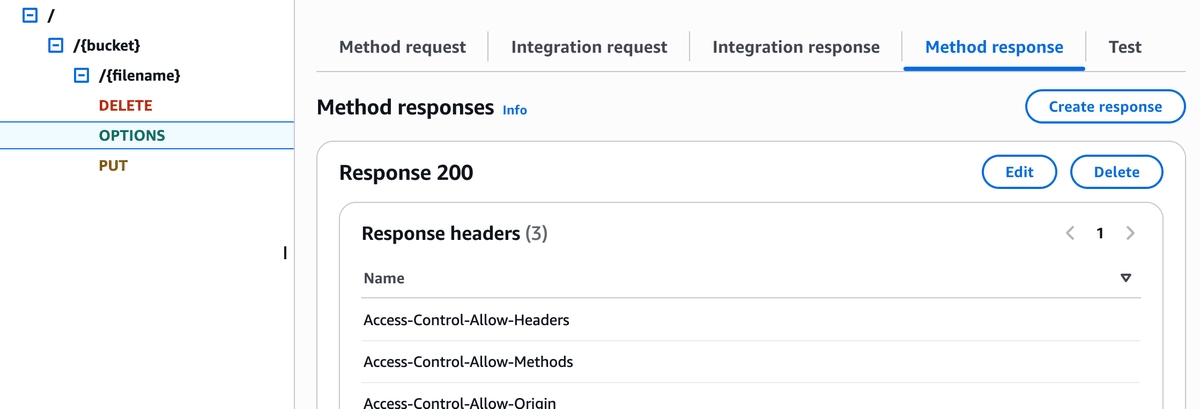
Configure Method Response
- Click Method Response
- Expand 200 response
- Add header:
Access-Control-Allow-Origin
10
Create DELETE Method
Repeat the same steps as PUT, but:
- Method: DELETE
- Integration HTTP method: DELETE
Phase 3
CORS & Deploy
11
Configure Binary Media Types
- Go to API Settings
- Find Binary Media Types
- Add these types:
image/pngimage/jpegimage/gifimage/webpapplication/pdfapplication/octet-stream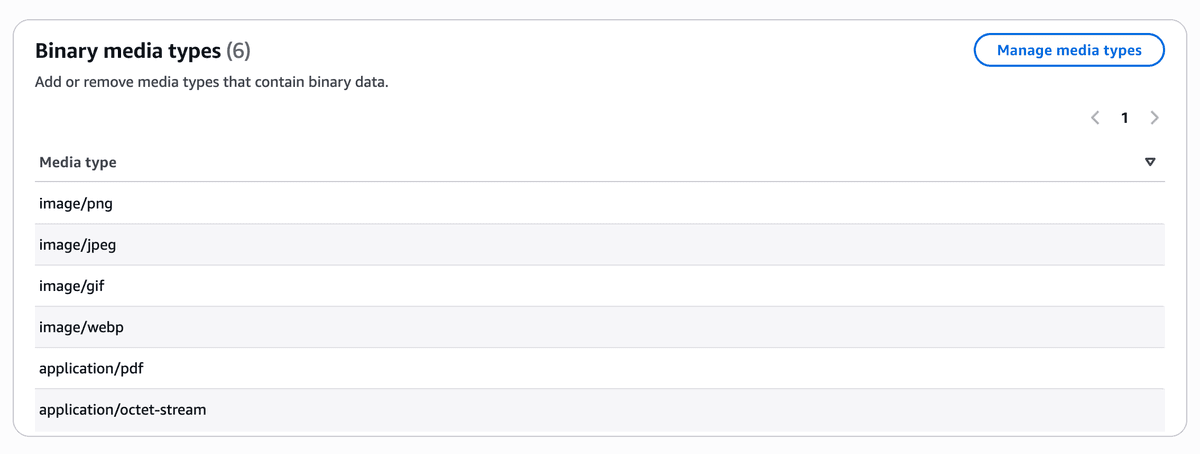
12
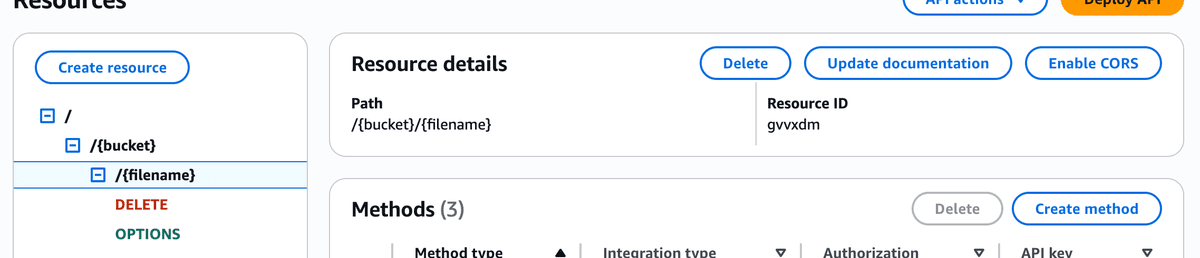
Enable CORS
- Select your resource
- Click Enable CORS
- Check PUT, DELETE, OPTIONS
- Add header:
Content-Type
13
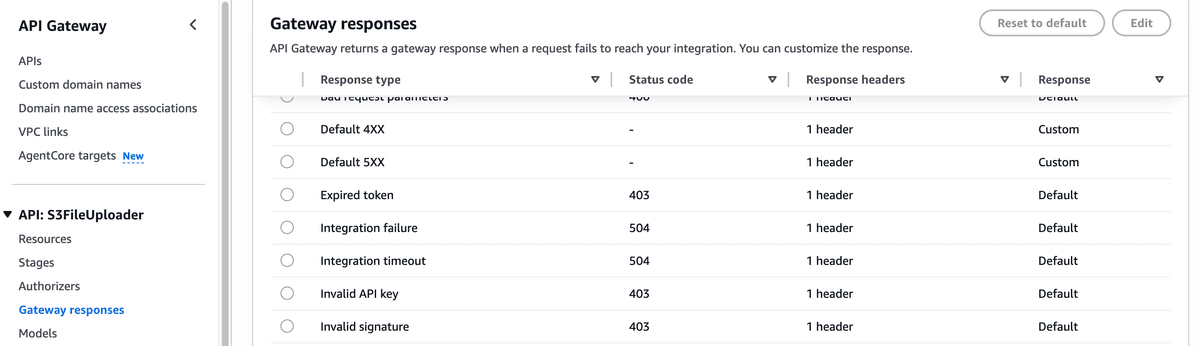
Configure Gateway Responses
- Go to Gateway responses
- Edit DEFAULT 4XX
- Add header:
Access-Control-Allow-Origin: '*' - Repeat for DEFAULT 5XX
14
Deploy the API
- Click Deploy API
- Stage: New Stage → name it
prod - Copy the Invoke URL
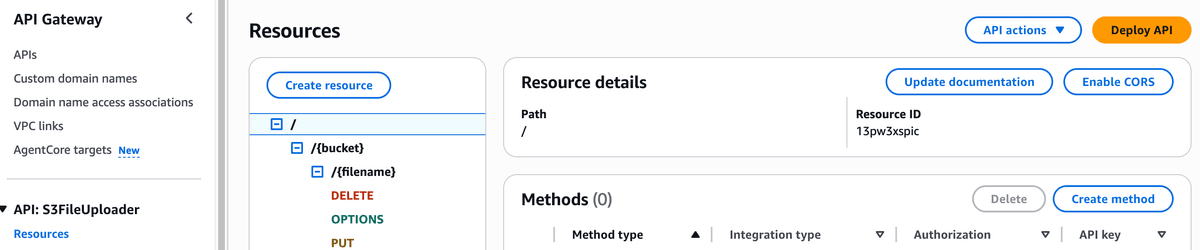
Your API URL will look like: https://xxxxx.execute-api.region.amazonaws.com/prod
Troubleshooting
CORS error: Check Gateway Responses have CORS headers
403 Forbidden: Verify IAM role ARN and bucket policy
Binary files corrupted: Add correct Binary Media Types
OPTIONS failing: Enable CORS on all methods
Security Notes
• Files are publicly readable via their S3 URL
• Use unique folder names (member IDs) for organization
• Consider adding request validation for production
• Monitor usage with CloudWatch
Try Memberstack for free
100% free, unlimited trial — upgrade only when you're ready to launch. No credit card required.