28 Components

Forgot Password Components

28 Webflow native forgot password components with 1-click copy & paste from a library of 807+. Built for Memberstack integration.

Unstyled Forgot Password - 3
View Component
Forgot PasswordUnstyled

Unstyled Forgot Password - 3

This component provides a simple, unstyled interface for informing users that their password has been reset. Key Features Includes a link back to the login pageDesign Elements: Minimalistic design with no predefined styles Uses standard HTML elements such as forms, headings, and labels Responsive layout suitable for various devices Potential Use Cases: Web applications requiring user authenticationE-commerce platforms needing secure password recovery Membership sites with user accounts Any service that requires user login and password management Conclusion: The Unstyled Forgot Password - 3 component is a versatile and functional solution for password recovery, ideal for developers looking for a straightforward implementation without design constraints.

Unstyled Forgot Password - 2
View Component
Forgot PasswordUnstyled

Unstyled Forgot Password - 2

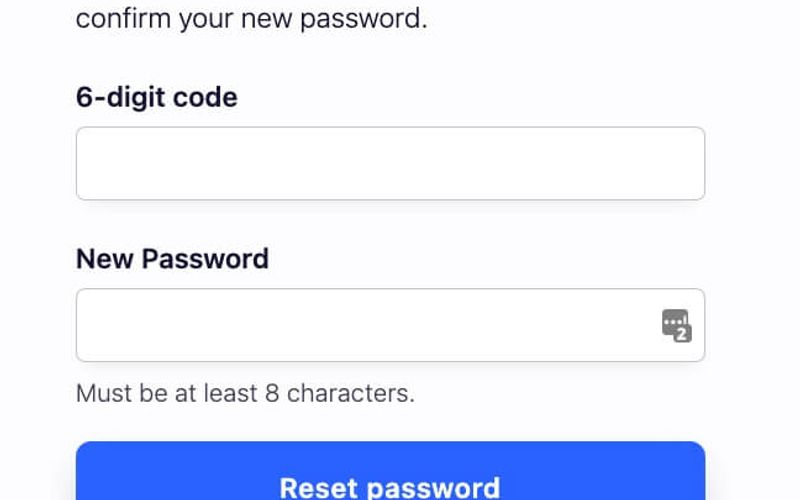
This component serves as a password reset form, allowing users to enter a 6-digit code and create a new password. It is designed to be functional without any predefined styles. Key Features Form for entering a 6-digit code and new password Success and error messages for user feedback Redirects to a success page upon completion No styling included, allowing for full customization Design Elements Minimalist layout with basic input fieldsClear headings and instructional textResponsive design suitable for various devices Potential Use Cases Web applications requiring user authenticationE-commerce sites needing secure password recovery Membership platforms with user accounts SaaS products that require user login management Conclusion: The Unstyled Forgot Password - 2 component is a versatile and functional solution for password recovery, ideal for developers looking to implement a customizable form without predefined styles.

Unstyled Forgot Password - 1
View Component
Forgot PasswordUnstyled

Unstyled Forgot Password - 1

This component provides a simple and functional forgot password form, allowing users to request password reset instructions via email. Key Features User-friendly email input field Submit button with a loading message Success and error messages for form submission feedback Redirects to a password reset page upon submission Design Elements Minimalist design with no predefined styles Clean layout suitable for integration into various web designs Responsive structure adaptable to different screen sizes Potential Use Cases E-commerce websites needing user account recovery options Membership sites requiring secure password management Blogs or content platforms with user accounts SaaS applications that require user authentication Conclusion: The Unstyled Forgot Password component is a versatile and essential tool for any web application that requires user password recovery, easily customizable to fit various design aesthetics.
Aerokit UI Reset Password01 Light Card
View Component
Forgot Password

Aerokit UI Reset Password01 Light Card

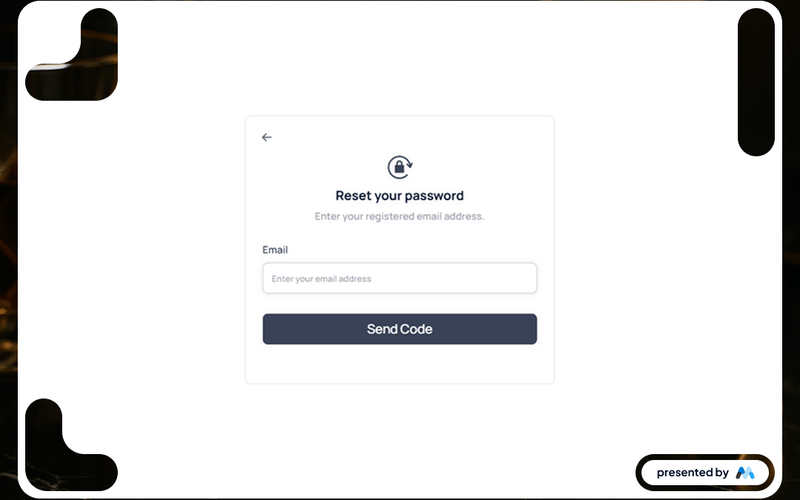
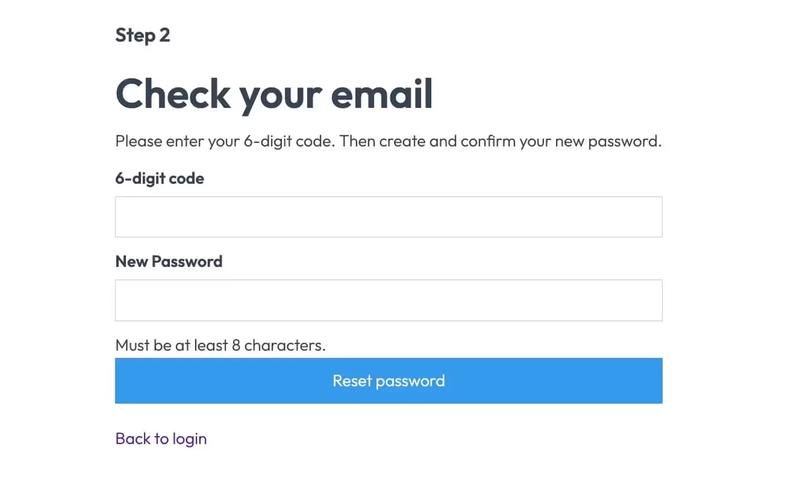
The Aerokit UI Reset Password01 Light Card is designed to facilitate user password reset processes in web applications. It includes a form for users to enter their registered email address, along with a submit button to send a password reset code. The component is visually structured to enhance user experience during the password recovery process. Key Features Email input field with placeholder text 'Enter your email address.'Submit button labeled 'Send Code' that triggers the password reset process.Success message displayed upon successful submission: 'Thank you! Your submission has been received!'Error message displayed if submission fails: 'Oops! Something went wrong while submitting the form.'Responsive design with a clean layout suitable for various screen sizes. Design Elements Light card design with a white background and subtle drop shadows for depth.Use of flexbox for layout, ensuring elements are centered and spaced appropriately.Typography styled for clarity, using a combination of font sizes and weights for hierarchy.Color scheme primarily featuring shades of blue and gray, enhancing readability.Iconography included for visual cues, such as a back arrow and a rotation lock. Potential Use Cases Web applications requiring user authentication and password management.E-commerce platforms needing secure user account recovery options.SaaS products that require user onboarding and password reset functionalities.Membership sites where users need to manage their login credentials.Corporate intranets that require secure access for employees. Conclusion: The Aerokit UI Reset Password01 Light Card is a practical component for developers looking to implement a user-friendly password reset feature in their applications, ensuring a smooth user experience.

Downloads Forgot Password
View Component
Forgot Password

Downloads Forgot Password

The Downloads Forgot Password component is designed to facilitate the password reset process for users, allowing them to submit their email address to receive reset instructions. Key Features User-friendly form for password reset requests Success and error messages for form submissions Email input field with validation Redirects to a specified URL after submission Design Elements: Clean and modern layout Responsive design suitable for various devices Colorful button with hover effects Clear typography for headings and labels Minimalistic style with ample whitespace Potential Use Cases: E-commerce websites needing password recovery options Membership sites requiring user authentication Educational platforms with user accounts SaaS applications offering user management Blogs or content sites with subscriber features Conclusion: The Downloads Forgot Password component is a versatile and essential tool for any website that requires user authentication, providing a seamless experience for password recovery.

Downloads Reset Password Form
View Component
Forgot Password

Downloads Reset Password Form

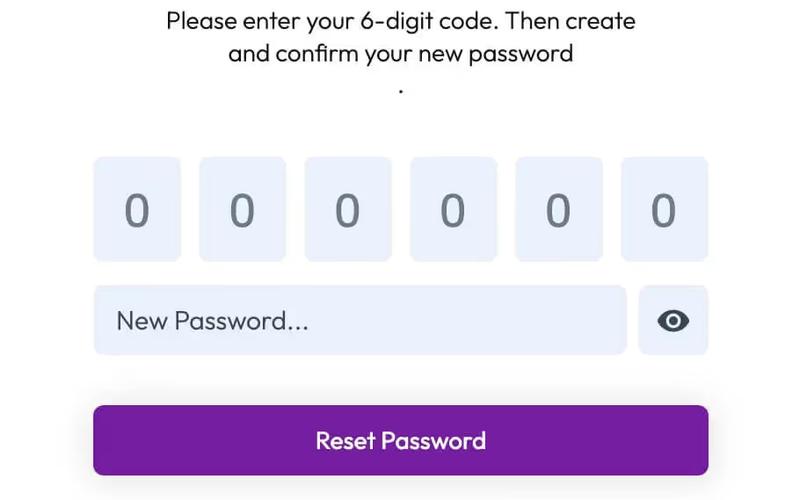
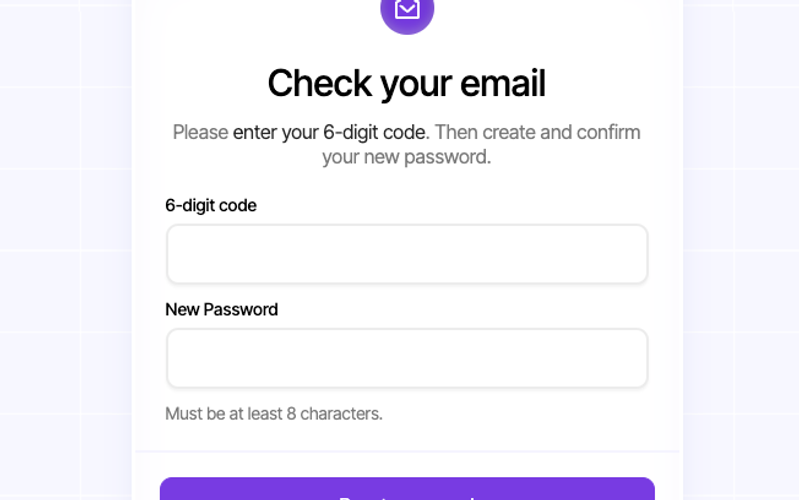
The Downloads Reset Password Form is a user-friendly component designed to facilitate password resets for users. It includes input fields for a 6-digit code and new password, along with clear instructions and feedback messages. Key Features User-friendly interface for password reset Input fields for 6-digit code and new password Success and error messages for user feedback Responsive design suitable for various devices Customizable styling options Design Elements Modern and clean layout Color scheme featuring shades of purple and white Hover effects on input fields and buttons Clear typography for instructions and labels Potential Use Cases E-commerce websites for customer account management Membership sites requiring secure password management Online services with user accounts needing password recovery Educational platforms for student account access Corporate intranets for employee login management Conclusion: The Downloads Reset Password Form is a versatile and visually appealing component that enhances user experience during password recovery, making it an essential tool for any website requiring secure user authentication.

Forget Reset Password
View Component
Forgot Password

Forget Reset Password

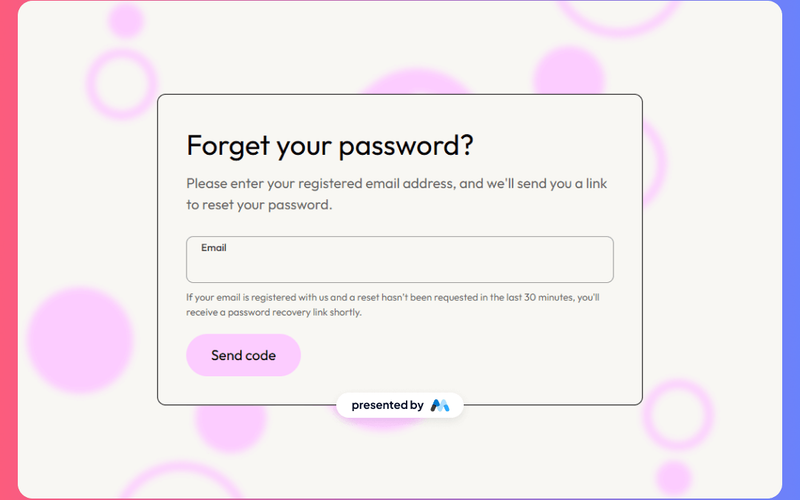
The Forget Reset Password component is designed to facilitate the password recovery process for users. It includes a form where users can enter their registered email address to receive a password reset link. This component is particularly useful for applications that require user authentication and password management. Key Features User-friendly form for email input with validation.Success and error messages to inform users of the submission status.Responsive design that adapts to various screen sizes.Customizable styles for branding consistency. Design Elements Light color scheme with a soft background (#f8f7f3) to enhance readability.Rounded corners on buttons and input fields for a modern look.Clear typography with a focus on legibility, using appropriate font sizes. Potential Use Cases E-commerce websites needing secure user account management.Online services requiring user authentication and password recovery.Membership sites that manage user access and credentials.Educational platforms with user accounts for students and instructors. Conclusion: This component effectively addresses the common need for password recovery, making it a valuable addition to any user authentication system.

Forgot Password
View Component
Forgot Password

Forgot Password

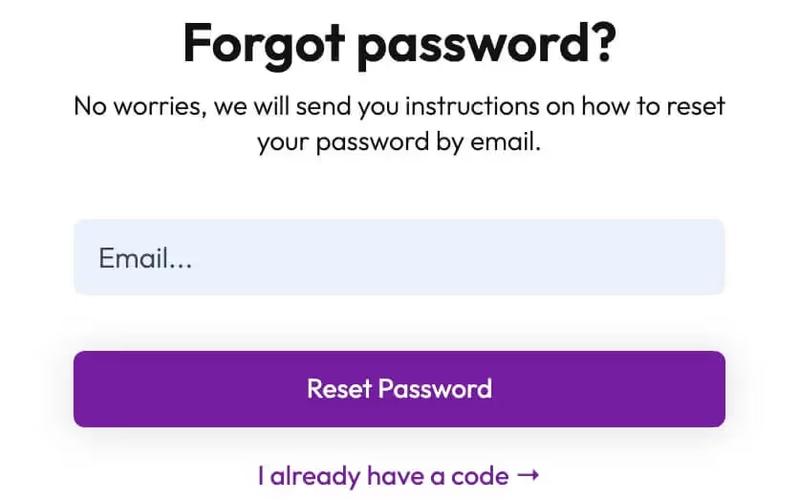
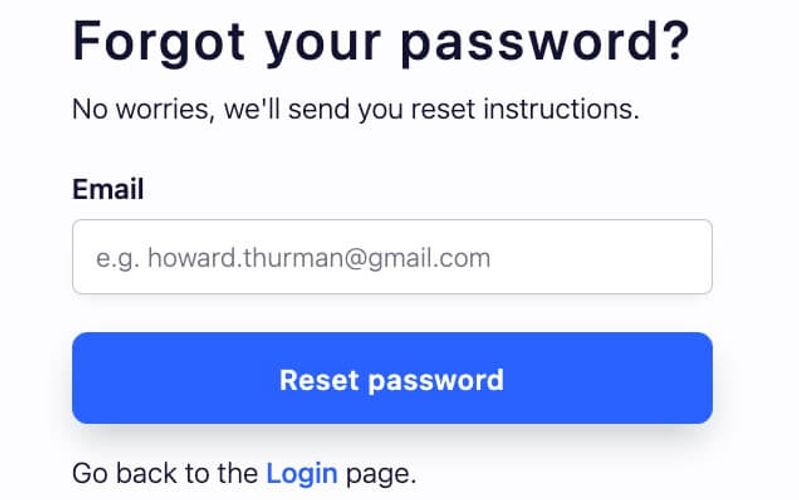
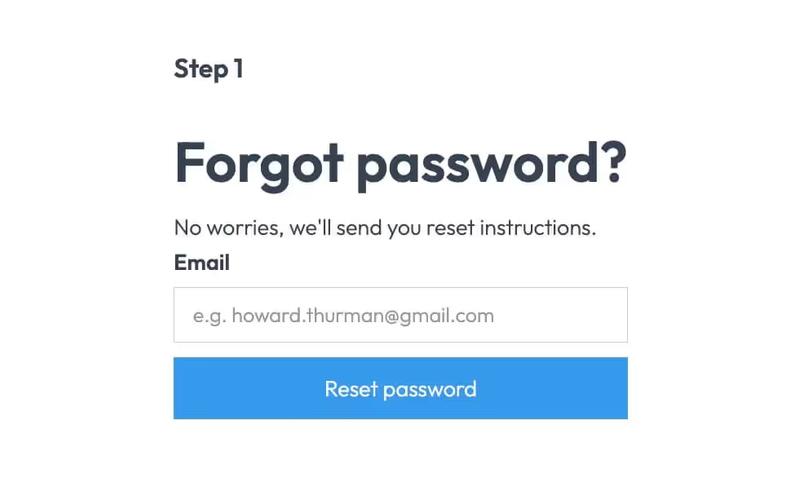
The Forgot Password component is designed to facilitate user password recovery by allowing users to submit their email addresses to receive reset instructions. Key Features User-friendly form layout Email input field with placeholder text Submit button labeled 'Reset password'Success and error messages for user feedback Redirects to a password reset page upon submission Design Elements Modern and clean design Responsive layout suitable for various devices Color scheme featuring shades of blue and white Rounded input fields and buttons for a softer appearance Potential Use Cases Web applications requiring user authenticationE-commerce platforms needing secure user access Membership sites that manage user accounts Blogs or content management systems with user login features Any website that prioritizes user account security Conclusion: The Forgot Password component is a versatile and essential tool for any website that requires user authentication, ensuring a smooth and secure password recovery process.

Forgot Password Prompt
View Component
Forgot Password

Forgot Password Prompt

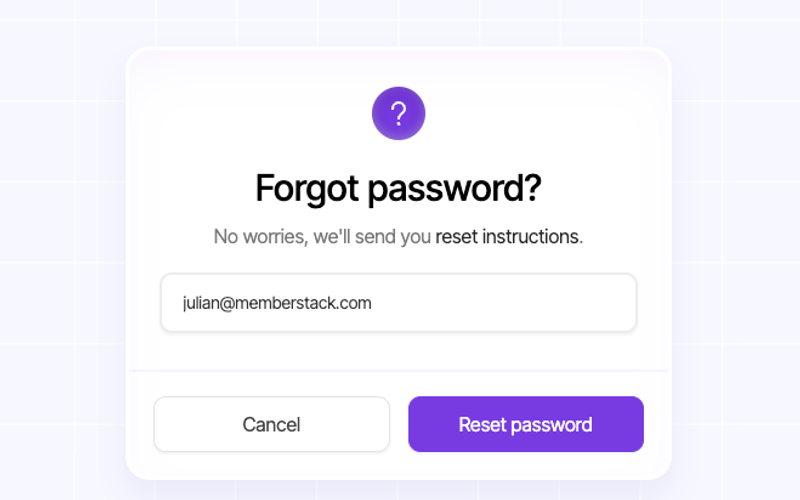
The Forgot Password Prompt is a user-friendly component designed to facilitate password recovery for users. It features a clean interface that guides users through the process of resetting their passwords. Key Features Responsive design suitable for various devices Includes form fields for email input Success and error messages for user feedback Cancel button to redirect users back to the login page Customizable styles and animations Design Elements Minimalistic layout with a focus on usability Soft color palette with a prominent background image Rounded corners and shadows for a modern look Clear typography for headings and instructions Potential Use Cases Web applications requiring user authenticationE-commerce platforms needing secure user account management Membership sites with user login functionalities SaaS products that require user onboarding and support Conclusion: The Forgot Password Prompt is a versatile and essential component for any web application, enhancing user experience by simplifying the password recovery process.

Forgot Password Step 2
View Component
Forgot Password

Forgot Password Step 2

This component is designed for the second step of a password recovery process, allowing users to enter a verification code and set a new password. It features a user-friendly form layout that enhances the user experience during password recovery. Key Features User input fields for a 6-digit verification code and new password Form validation with error and success messages Responsive design suitable for various devices Customizable styles and animations Redirects to the next step upon successful submission Design Elements Clean and modern layout with a focus on usability Soft color palette with a prominent background image Rounded input fields and buttons for a friendly appearance Clear typography for easy readability Potential Use Cases Web applications requiring user authentication and password recoveryE-commerce platforms needing secure account management Membership sites with user login features SaaS products that require user account security Conclusion: The Forgot Password Step 2 component is a versatile and essential tool for any web application that prioritizes user security and experience, making it easy for users to recover their accounts.

Forgot Password Success (Login)
View Component
Forgot PasswordLogin

Forgot Password Success (Login)

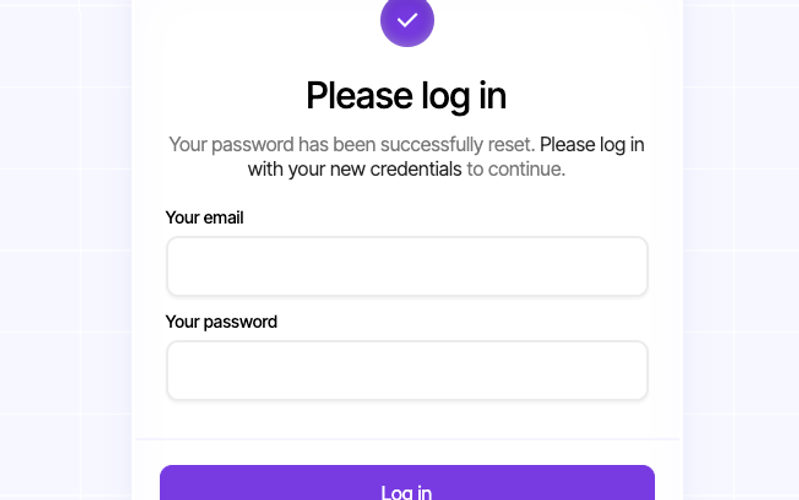
This component provides a user-friendly interface for notifying users that their password has been successfully reset, along with a prompt to log in with new credentials. Key Features Responsive design suitable for various devices Includes form for email and password input Success and error messages for user feedback Customizable styles and classes Interactive elements with scroll animations Design Elements Clean and modern layout Soft color palette with a focus on usability Rounded corners and shadow effects for depth Centered alignment for a balanced appearance Potential Use Cases Web applications requiring user authenticationE-commerce platforms for account management Membership sites needing secure login processes SaaS products with user account functionalities Conclusion: The Forgot Password Success component is versatile and visually appealing, making it an excellent choice for any application that requires user authentication and account recovery features.

Insight Loop UI Kit Reset Password Page
View Component
Forgot Password

Insight Loop UI Kit Reset Password Page

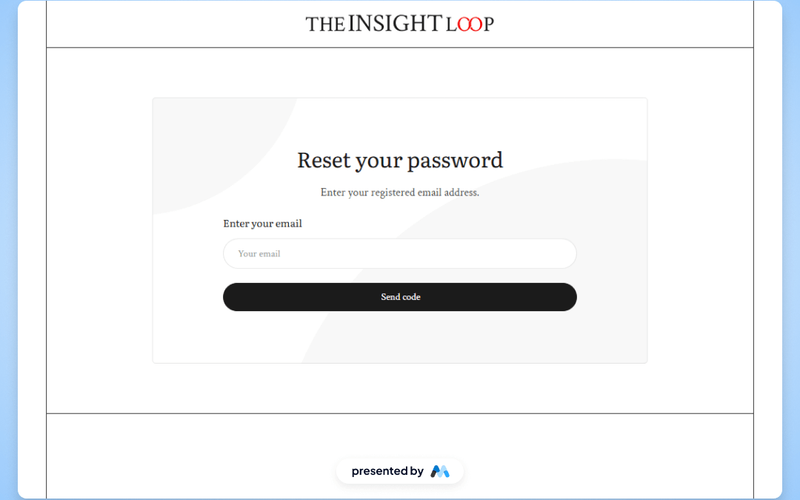
The Insight Loop UI Kit Reset Password Page is designed to facilitate user password recovery through a clean and structured interface. It includes a form for users to enter their registered email address and receive a password reset link, enhancing user experience during account recovery. Key Features User-friendly form for email input with placeholder text 'Your email'.Success and error messages for form submission feedback.Responsive design elements ensuring accessibility across devices.Customizable styles for focus states and typography to enhance readability. Design Elements Minimalistic layout with a focus on form functionality.Use of clear headings such as 'Reset your password' to guide users.Incorporation of visual cues like success and error messages to inform users of their actions.Consistent color scheme with emphasis on interactive elements like buttons. Potential Use Cases Web applications requiring user authentication and password recovery.E-commerce platforms needing secure user account management.SaaS products that require user login and password reset functionalities.Membership sites where user account security is paramount. Conclusion: The Insight Loop UI Kit Reset Password Page is a practical solution for developers looking to implement a password recovery feature, offering essential functionalities and a straightforward design.

Invest Forgot Password
View Component
Forgot Password

Invest Forgot Password

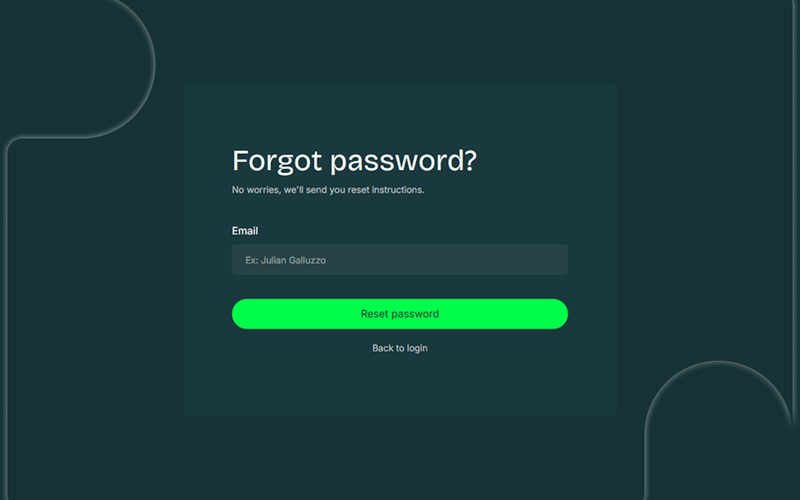
The Invest Forgot Password component is designed to facilitate user password recovery by providing a simple and effective interface for users to request password reset instructions. It includes a form for email input and user feedback messages upon submission. Key Features Email input field for users to enter their email address.Submit button labeled 'Reset password' to initiate the password recovery process.Success message displayed upon successful submission: 'Thank you! Your submission has been received!'Error message displayed if submission fails: 'Oops! Something went wrong while submitting the form.'Link to return to the login page. Design Elements The component features a dark background (#153236) with white text for high contrast.Rounded corners on input fields and buttons for a softer visual appeal.Centered layout with flexbox for alignment and spacing.Typography is set to use the 'Inter' font family for a clean and readable appearance.Responsive design elements that adjust based on screen size. Potential Use Cases Web applications requiring user authentication and password recovery.E-commerce platforms that need secure user account management.Online services offering subscription-based access where password recovery is essential.Educational platforms with user accounts for students and staff.Financial services websites that prioritize user security and account access. Conclusion: The Invest Forgot Password component is a practical solution for any website needing a straightforward password recovery feature, ensuring users can easily regain access to their accounts.

Log In After Password Reset
View Component
LoginForgot Password

Log In After Password Reset

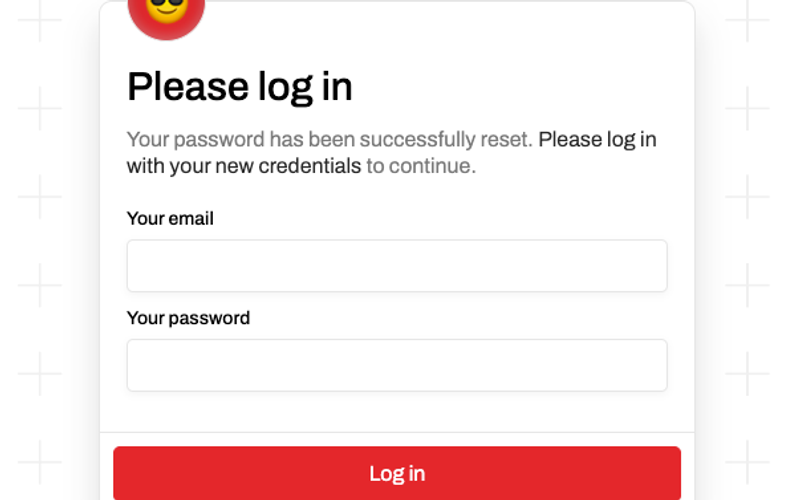
This component provides a user-friendly interface for logging in after a password reset, ensuring a smooth transition for users who have recently updated their credentials. Key Features Form for email and password input Success and error messages for form submission Responsive design suitable for various devices Customizable styles and classes Includes a visual emoji element for a friendly touch Design Elements Minimalistic layout with a focus on usability Color scheme featuring soft backgrounds and contrasting text Rounded corners and subtle shadows for a modern look Use of an emoji to enhance user engagement Potential Use Cases Web applications requiring user authenticationE-commerce sites needing secure login processes Membership platforms for user account management SaaS products that require user login after password resets Blogs or content sites with user accounts Conclusion: The 'Log In After Password Reset' component is versatile and easy to integrate, making it an excellent choice for any web application that prioritizes user experience and security.

Modern Password Reset UI
View Component
Forgot Password

Modern Password Reset UI

The Modern Password Reset UI is designed to facilitate user password recovery processes in web applications. It features a clean layout with input fields for email submission, success, and error messages, making it user-friendly. This component is a free resource for Webflow developers to use in their projects. Key Features Email input field with validation for user input.Success message displayed upon successful form submission.Error message shown if the submission fails.Responsive design that adapts to various screen sizes. Design Elements Flexbox layout for aligning elements vertically and horizontally.Use of a prominent color scheme with a focus on accessibility.Incorporation of smooth transitions for interactive elements.Consistent padding and margin settings to maintain visual balance. Potential Use Cases Web applications requiring user authentication and password recovery.E-commerce platforms needing secure user account management.Corporate websites that require user login functionalities.Mobile applications that need a web-based password reset interface. Conclusion: The Modern Password Reset UI is a practical solution for developers looking to implement a password recovery feature, combining functionality with a clean design.

OPT Input
View Component
InputPasswordless+1

OPT Input

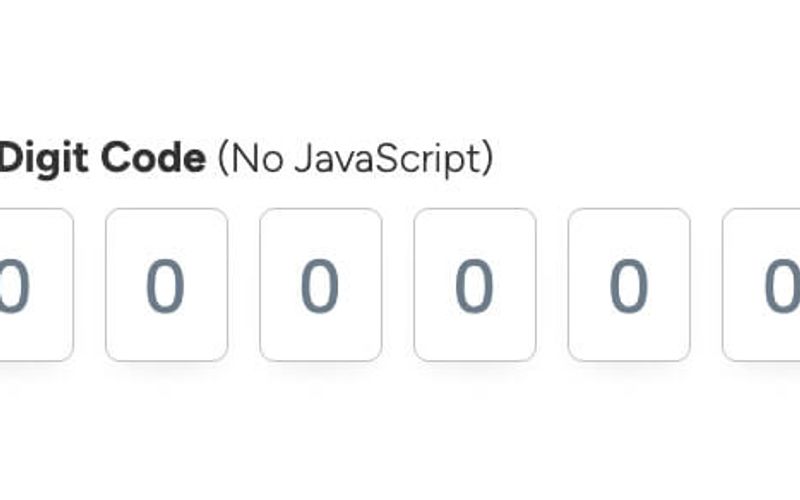
The OPT Input component is designed for capturing a 6-digit code input from users, featuring a clean and modern interface without the need for JavaScript functionality. Key Features 6-digit code input field Customizable CSS for hover and focus states Responsive design suitable for various devices Required field validation Placeholder text for user guidance Design Elements Minimalistic layout with a focus on usability Light text styling for clarity Subtle hover effects with border color changes Flexible input field dimensions Potential Use Cases Two-factor authentication forms Online verification processes Membership or subscription sign-up forms Secure access to sensitive information Event registration requiring confirmation codes Conclusion: The OPT Input component is versatile and user-friendly, making it an excellent choice for any application that requires secure code entry while maintaining a sleek design.

Password Recovery Process
View Component
Forgot Password

Password Recovery Process

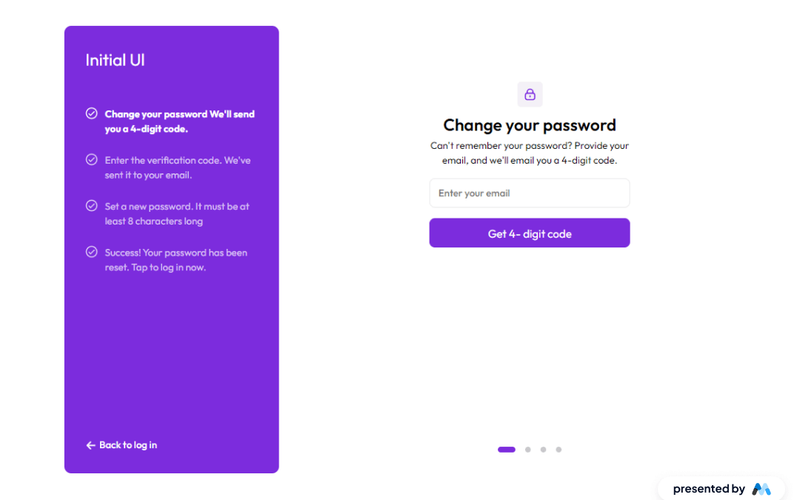
The Password Recovery Process component is designed to facilitate user password recovery through a structured interface. It includes steps for entering an email, receiving a verification code, and setting a new password. This component is a free resource for Webflow developers to use in their projects. Key Features Email input field for user to enter their email address.Verification code input for users to enter the code sent to their email.Success and error messages to inform users of the status of their password recovery.Responsive design elements that adapt to various screen sizes. Design Elements Clean layout with a focus on usability, featuring clear input fields and buttons.Use of icons next to text for visual guidance, such as checkmarks for successful actions.Color scheme that emphasizes accessibility and readability, with contrasting colors for buttons and text. Potential Use Cases Web applications requiring user authentication and password management.E-commerce platforms where users need to recover access to their accounts.Membership sites that require secure login processes.Corporate intranets that need to manage employee access securely. Conclusion: The Password Recovery Process component provides a straightforward and effective solution for managing user password recovery, making it suitable for a variety of applications that prioritize user security.

Password Reset Card
View Component
Forgot Password

Password Reset Card

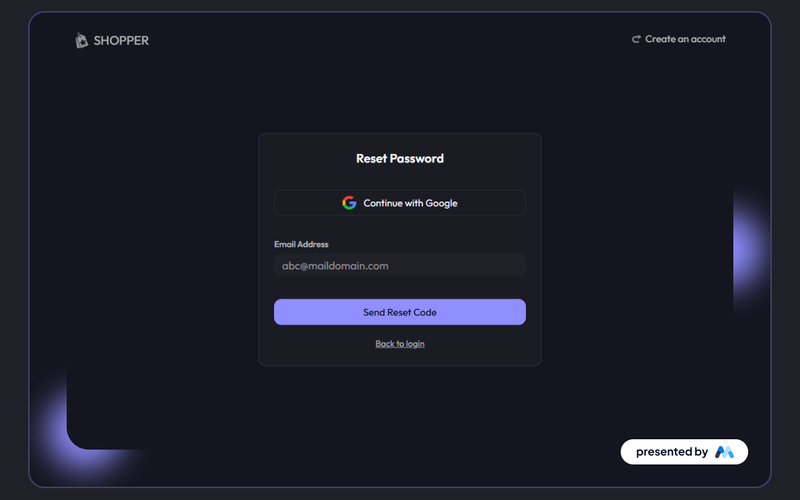
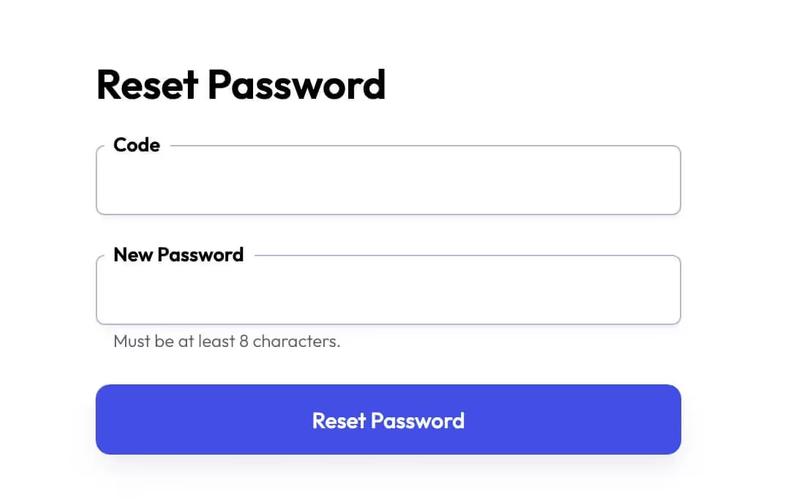
The Password Reset Card is a Webflow component designed to facilitate the password reset process for users. It includes fields for entering a reset code and a new password, along with a submit button and links for navigation. This component is a free resource for Webflow developers to use in their projects. Key Features Form fields for entering a reset code and new password.Submit button with a loading message.Success and error messages displayed upon form submission.Links for navigating back to the login page or creating a new account. Design Elements Utilizes a clean layout with a focus on usability.Incorporates responsive design principles for various screen sizes.Includes SVG icons for visual enhancement.Styled with a modern font (Outfit) and a color scheme that emphasizes readability. Potential Use Cases Web applications requiring user authentication and password management.E-commerce platforms needing secure user account features.Membership sites that require user login and password recovery options.SaaS products that need to manage user credentials effectively. Conclusion: The Password Reset Card is a practical and functional component that streamlines the password recovery process, making it suitable for various web applications.

Pick A Password
View Component
Forgot Password

Pick A Password

The 'Pick A Password' component is designed to facilitate the password reset process for users, allowing them to enter a verification code and create a new password securely. Key Features User-friendly form for password reset Includes fields for a 6-digit verification code and new password Success and error messages for user feedback Redirects to a success page upon completion Design Elements Clean and modern layoutResponsive design suitable for various devicesColor scheme featuring shades of blueClear typography for readability Potential Use Cases Web applications requiring user authenticationE-commerce platforms needing secure password management Membership sites with user accounts Online services offering subscription models Conclusion: The 'Pick A Password' component is a versatile and essential tool for any web application that prioritizes user security and ease of access, making it an excellent choice for developers.

Red Forgot Password (Step 1)
View Component
Forgot Password

Red Forgot Password (Step 1)

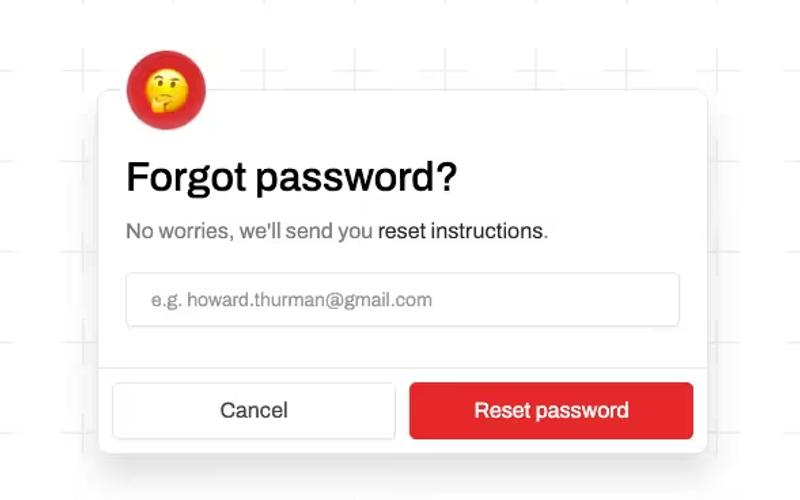
This component provides a user-friendly interface for password recovery, allowing users to request reset instructions via email. It features a clean design and straightforward functionality. Key Features Email input field for password reset requests Success and error messages for user feedback Cancel link to redirect to login page Responsive design suitable for various devices Design Elements: Modern and minimalistic layout Red color scheme for buttons and highlights Clear typography with a focus on readability Use of emojis to enhance user engagement Soft shadows and rounded corners for a friendly appearance Potential Use Cases: E-commerce websites needing secure user account management SaaS platforms requiring user authentication and password recovery Membership sites where user access is critical Blogs or content sites with user accounts Mobile applications that require web-based authentication Conclusion: The Red Forgot Password (Step 1) component is a versatile and visually appealing solution for any website needing a password recovery feature, enhancing user experience and security.

Red Reset Password
View Component
Forgot Password

Red Reset Password

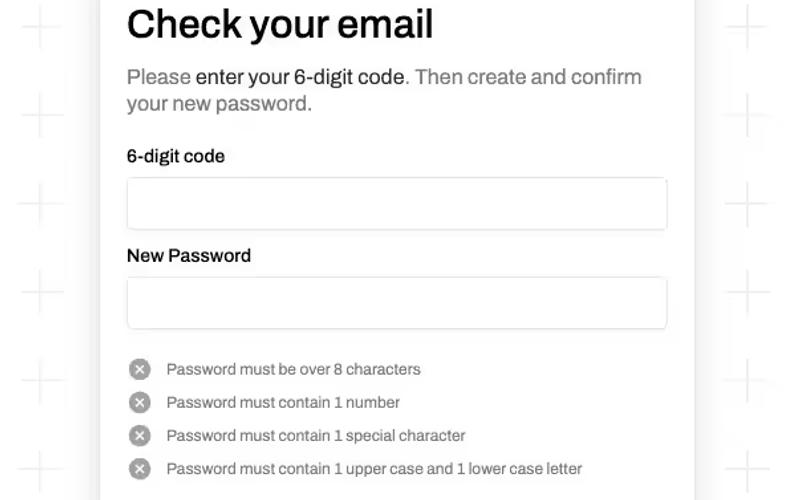
The Red Reset Password component is designed to facilitate the password reset process for users, providing a user-friendly interface to enter a verification code and set a new password. Key Features User-friendly form for entering a 6-digit verification code Fields for new password and confirmation with validation requirements Success and error messages for user feedback Responsive design suitable for various devices Customizable styles and classes Design Elements: Bold red accents for buttons and highlights Clean and modern layout with ample white space Use of icons to enhance user experience Consistent typography with clear headings and labels Potential Use Cases: Web applications requiring user authenticationE-commerce platforms for secure account management Membership sites needing password recovery options SaaS products with user accounts Conclusion: The Red Reset Password component is a versatile and visually appealing solution for any website or application needing a secure and efficient password reset process.

Reset Forgotten Password
View Component
Forgot Password

Reset Forgotten Password

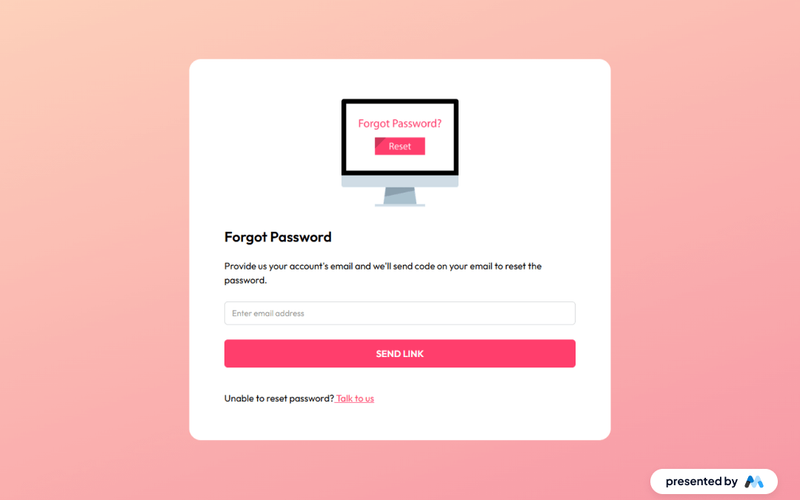
The 'Reset Forgotten Password' component is designed to facilitate users in recovering their accounts by allowing them to request a password reset link via email. It includes a user-friendly form for email input and provides feedback upon submission, such as success or error messages. Key Features Email input field for users to enter their registered email address.Submit button labeled 'SEND LINK' to initiate the password reset process.Success message displayed upon successful submission: 'Thank you! Your submission has been received!'Error message displayed if there is an issue with the submission: 'Oops! Something went wrong while submitting the form.'Responsive design that adapts to various screen sizes. Design Elements Centered layout with a clean and simple design, ensuring focus on the form.Use of flexbox for layout management, allowing for easy alignment of elements.Color scheme featuring a prominent pinkish button for the submit action, enhancing visibility.Incorporation of a header image related to password recovery, adding a visual context. Potential Use Cases Web applications requiring user authentication and password recovery features.E-commerce platforms where users may forget their passwords.Online services offering account management for users.Membership sites that need secure access for users.Educational platforms that require user login for course access. Conclusion: This component effectively addresses the common need for password recovery, providing a straightforward and functional solution for users across various online platforms.

ResetFlow UI
View Component
Forgot Password

ResetFlow UI

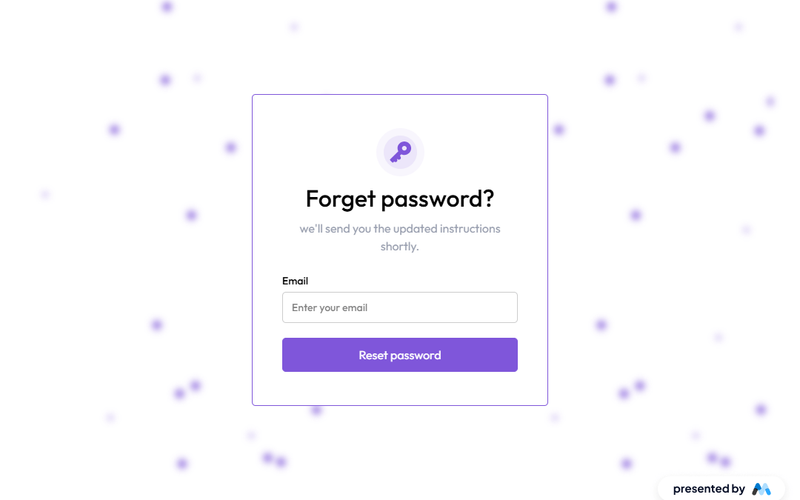
ResetFlow UI is a user interface component designed for password reset functionality. It includes a form for users to enter their email address and receive instructions for resetting their password. The component features a clean layout with animations to enhance user experience. Key Features Email input field with placeholder text 'Enter your email' and validation for required input.Submit button labeled 'Reset password' with a loading message 'Please wait...' during submission.Success message displayed upon successful submission: 'Thank you! Your submission has been received!'Error message displayed if submission fails: 'Oops! Something went wrong while submitting the form.'Animations integrated for visual appeal during user interactions. Design Elements The layout is structured with a centered form, utilizing flexbox for alignment.Color scheme includes shades of purple and white, with a focus on accessibility through high contrast.Use of rounded corners and shadows for input fields and buttons to create a soft visual effect.Responsive design elements that adapt to various screen sizes, ensuring usability across devices. Potential Use Cases Web applications requiring user authentication and password recovery features.E-commerce platforms needing secure user account management.SaaS products that require user registration and password reset functionalities.Blogs or content management systems that allow user accounts and password recovery. Conclusion: ResetFlow UI is a practical component for developers looking to implement password reset functionalities efficiently, combining usability with appealing design.

Swift Password Reset
View Component
Forgot Password

Swift Password Reset

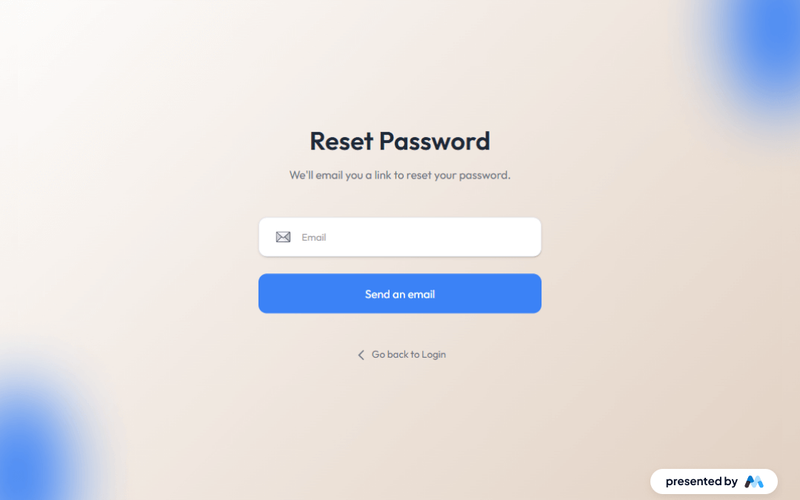
The Swift Password Reset component is designed to facilitate a user-friendly password reset process. It includes a form where users can input their email address to receive a reset link, along with success and error messages to guide them through the process. Key Features Email input field for users to enter their email address.Submit button labeled 'Send an email' to initiate the password reset process.Success message displayed upon successful submission: 'Thank you! Your submission has been received!'Error message displayed if submission fails: 'Oops! Something went wrong while submitting the form.'Responsive design that adapts to various screen sizes. Design Elements Centered layout with a clean and simple design for easy user interaction.Use of a blue color scheme for buttons and links, enhancing visibility.Incorporation of icons to visually represent the action of sending an email.Flexbox layout for responsive alignment of form elements. Potential Use Cases Web applications requiring user authentication and password management.E-commerce platforms needing secure user account management.Corporate websites that offer user accounts for employees.Educational platforms where students need to manage their login credentials.Any service that requires user registration and password recovery options. Conclusion: The Swift Password Reset component is a practical solution for implementing password recovery features in various web applications, ensuring a straightforward experience for users.

Webflow Forgot Password Form
View Component
Forgot Password

Webflow Forgot Password Form

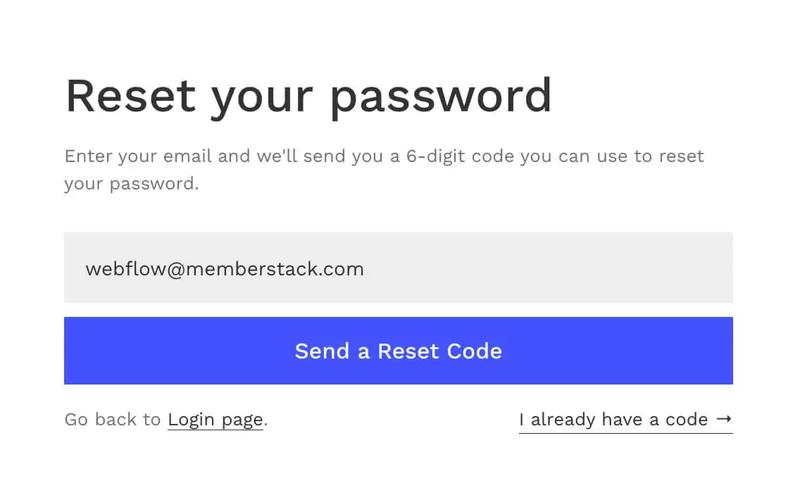
This component is designed to facilitate the password recovery process for users, allowing them to request a reset code via email. It is built using Webflow's UI and powered by Memberstack. Key Features User-friendly email input for password reset requests Responsive design suitable for various devices Success and error messages to guide user actions Integration with Memberstack for user management Customizable styling options Design Elements: Clean and modern layout Prominent heading with clear instructions Subtle color scheme with a focus on usability Flexbox layout for responsive design Potential Use Cases: Web applications requiring user authenticationE-commerce platforms needing secure user accounts Membership sites that manage user credentials SaaS products with user login features Blogs or content sites with user registration Conclusion: The Webflow Forgot Password Form is a versatile and essential component for any web application that requires user authentication, providing a seamless experience for password recovery.

eBook Forgot Password
View Component
Forgot Password

eBook Forgot Password

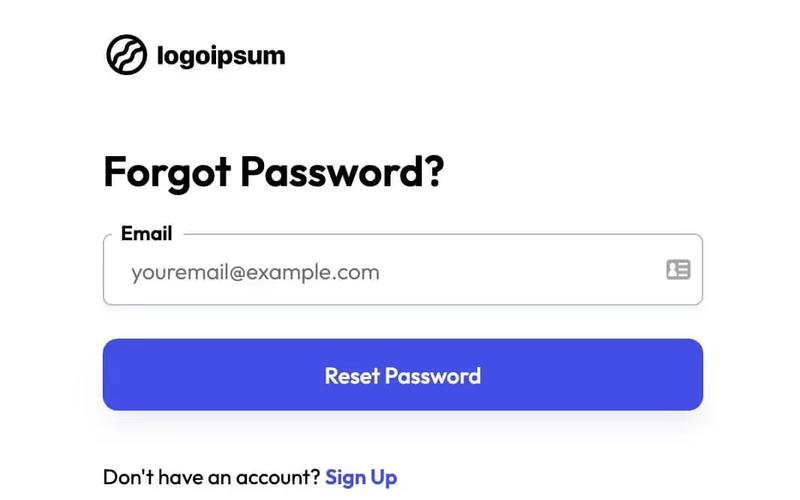
The eBook Forgot Password component is designed to facilitate the password recovery process for users, providing a simple and effective form for email submission. Key Features User-friendly email input field for password reset requests Success and error messages to inform users of submission status Responsive design suitable for various devices Includes a link for users to sign up if they don't have an account Design Elements: Clean and modern layout with a focus on usability Color scheme featuring shades of blue and white for a professional look Includes a logo for branding purposes Potential Use Cases: Web applications requiring user authenticationE-commerce platforms needing secure password recovery options Membership sites that manage user accounts Educational platforms offering online courses Conclusion: The e Book Forgot Password component is a versatile and essential tool for any web application that requires user account management, ensuring a smooth and efficient password recovery experience.

eBook Password Success
View Component
Forgot Password

eBook Password Success

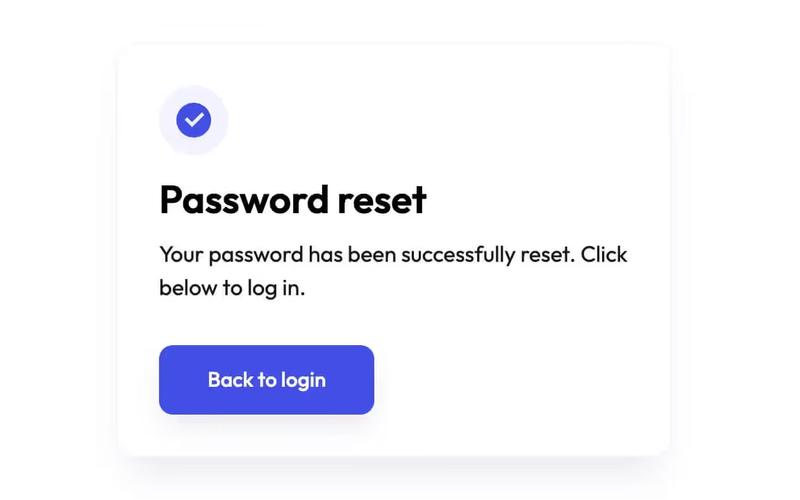
The eBook Password Success component is designed to inform users that their password has been successfully reset, providing a clear call to action to log in. Key Features Includes a prominent heading and confirmation message.Features a visually appealing confirmation icon.Provides a button for users to return to the login page.Responsive design suitable for various screen sizes.Design Elements: Clean and modern layout with a focus on user experience.Color scheme includes shades of blue and white for a professional look.Utilizes flexbox for alignment and spacing.Potential Use Cases: Web applications requiring user authentication.e Commerce sites needing password reset notifications.Membership platforms that manage user accounts.Educational platforms offering online courses.Conclusion: The e Book Password Success component is a versatile and user-friendly solution for enhancing user experience during password management processes.

eBook Reset Password
View Component
Forgot Password

eBook Reset Password

The eBook Reset Password component is designed to facilitate password recovery for users, featuring a user-friendly form for inputting a reset code and new password. Key Features Responsive design suitable for various devices Includes input fields for reset code and new password Success and error messages for user feedback Customizable form action and redirection upon submission Design Elements: Modern and clean layout Use of flexbox for alignment and spacing Color scheme featuring shades of blue and white Includes logo for branding Potential Use Cases: Web applications requiring user authenticatione Commerce platforms needing secure password recovery Membership sites with user accounts Educational platforms offering online courses Conclusion: The e Book Reset Password component is versatile and easy to integrate, making it an excellent choice for any web application that requires secure password management.

Showing 1–28 of 28 componentstagged with Forgot Password

No website yet? Check out our free & paid pre-built template websites!

View templates