Data Tables
Record Details Page (Data Tables)
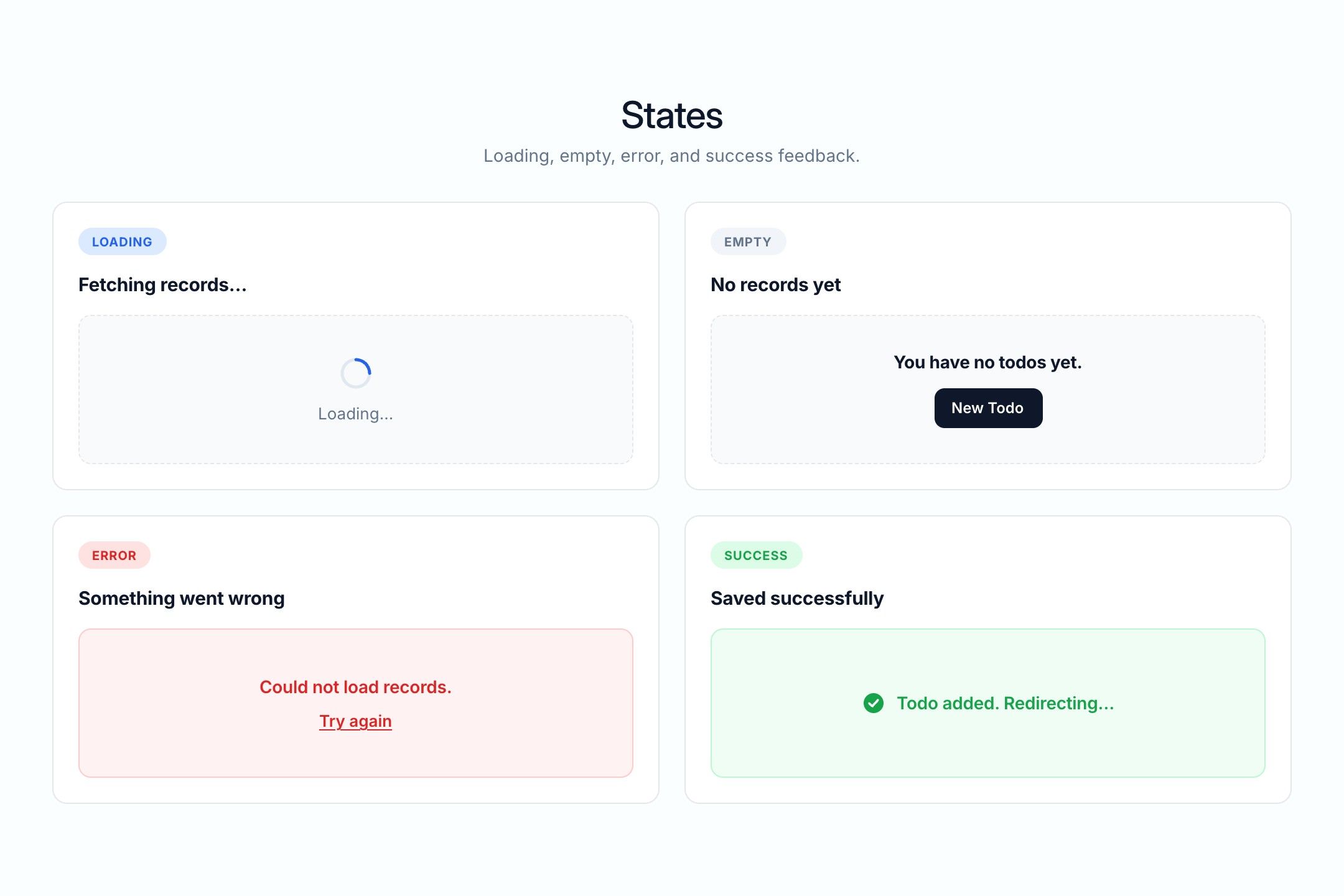
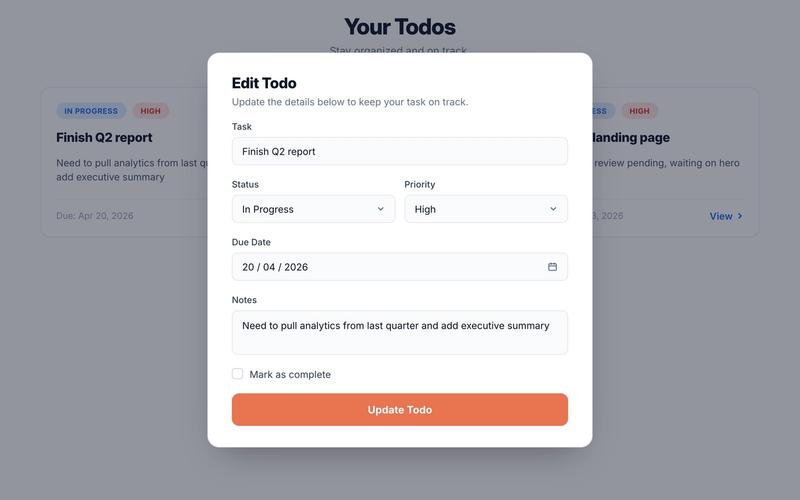
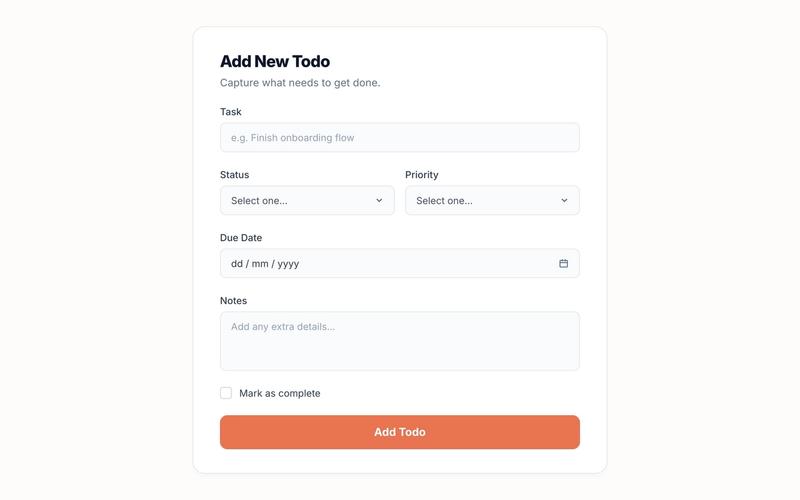
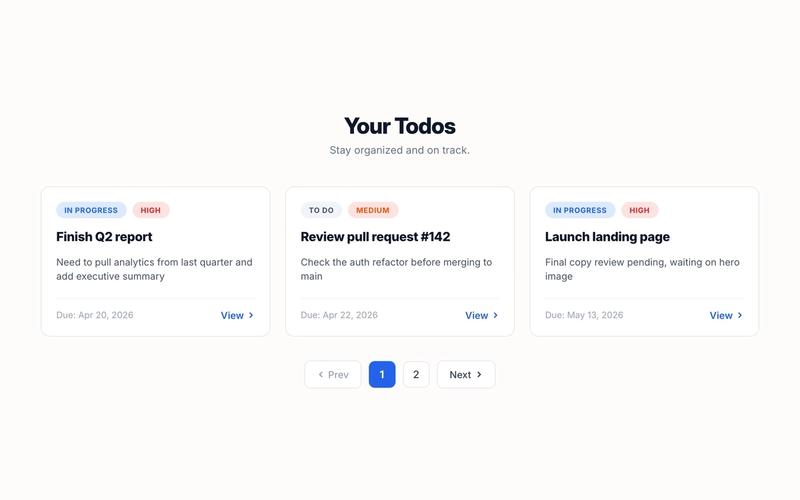
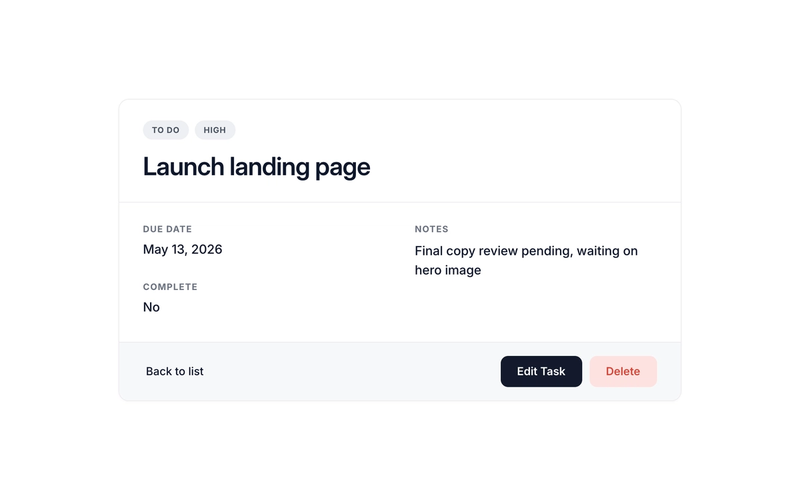
This component requires an accompanying script. Update the following attribute values on the detail wrapper to match your data table: ms-code-table — your data table name (default: "todos") ms-code-id-param — URL query parameter name for the record ID (default: id). Must match what the linking list view uses ms-code-owner-field — (optional) field that stores the owner's member ID; if set, the page only shows the record when the current member matches; otherwise the error state appears ms-code-edit-page — (optional) URL of the edit page (e.g. /edit). The script populates the Edit button's href with this URL plus ?id=... ms-code-delete-page — (optional) URL of the delete confirmation page (e.g. /delete). The script populates the Delete button's href the same way data-ms-field on each display element — set to the matching field key in your table ms-field on each display element — set to the field type: text, number, date, checkbox, html, image, or link Linking from the Card List, Table List, or Kanban The list-style components (Card List, Table List, and Kanban Board) generate per-record links using ms-code-detail-page and ms-code-id-param. To send users to this detail page when they click a card, row, or kanban card: Set ms-code-detail-page on the list/table/kanban container to the URL of this detail page (e.g. /detail) Make sure ms-code-id-param matches on both the list and the detail container (default: id) Inside each card or row, include an element with data-ms-code="detail-link" — the list scripts populate its href automatically with the record ID The card link will resolve to something like /detail?id=abc123, and this component reads that ID on load. Recommended Page Structure The detail page sits at the center of a typical CRUD flow. A clean, conventional setup looks like this: /todos — Card List or Table List view /board — Kanban Board /detail — Record Detail page (this component) /edit — Edit form /delete — Delete confirmation /new — Create form Wire each list-style page to the detail page via ms-code-detail-page="/detail". On the detail page, point Edit and Delete to their dedicated pages via ms-code-edit-page="/edit" and ms-code-delete-page="/delete". The same record ID flows through every URL as the ?id=... query parameter, so the chain works end-to-end without any custom JS. Page names are arbitrary. The slugs above (/detail, /edit, /delete, etc.) are conventions, not magic strings. Name your pages anything — /task-overview, /aufgabe-bearbeiten, /dashboard/tasks/view, etc. — and just plug those URLs into the matching ms-code-*-page attributes. The only values that actually need to line up across pages are ms-code-table (must match your data table key) and ms-code-id-param (must use the same query parameter name on every page so the record ID hands off correctly). Key Features Reads the record ID from the URL on load and fetches the record via getDataRecord Type-aware field rendering: text sets textContent, number formats with locale separators, date formats to a readable string, checkbox displays "Yes" or "No", html sets innerHTML, image sets src or background-image, link sets href Optional ownership check via ms-code-owner-field — non-owners see the error state instead of someone else's record Auto-generates Edit and Delete button URLs by combining ms-code-edit-page / ms-code-delete-page with the current record ID — no JS needed to wire navigation Three UI states: loading, populated content, and error (which doubles as "not found" and "not your record") Handles 429 rate-limit responses automatically with exponential-backoff retries Multiple detail containers supported on the same page if needed (rare, but it works) Action Buttons The default HTML includes three action buttons in the footer of the content block: Back to list — a plain <a href="/todos"> link; update the href to your list page Edit — has data-ms-code="edit-link"; the script populates the href with the edit page URL plus ?id=... Delete — has data-ms-code="delete-link"; the script populates the href the same way Remove any button you don't need by deleting it from the HTML. To skip the Edit or Delete URL population, simply omit ms-code-edit-page or ms-code-delete-page from the wrapper. Full Attribute Reference Three categories of attributes drive this component. Use this section as a complete spec when wiring up the markup. 1. Container Attributes (on the detail wrapper) data-ms-code="detail-container" — required. Marks this element as the detail wrapper. The script initializes one instance per matching element. ms-code-table — required. The Memberstack data table key to fetch from. Example: ms-code-table="todos". ms-code-id-param — optional, defaults to id. URL query parameter name that holds the record ID. Example: ms-code-id-param="recordId". ms-code-owner-field — optional. Field key that stores the owner's member ID. When set, the page only shows the record if the current member matches; non-owners see the error state. Example: ms-code-owner-field="owner". ms-code-edit-page — optional. URL of the edit page. Used to populate the Edit button's href. Example: ms-code-edit-page="/edit". ms-code-delete-page — optional. URL of the delete confirmation page. Used to populate the Delete button's href. Example: ms-code-delete-page="/delete". 2. Element Role Attributes (data-ms-code values inside the container) detail-loading — recommended. Shown while fetching the record. Add style="display:none" to the element so it doesn't flash on page load. detail-error — recommended. Shown if the fetch fails, the record can't be found, or the ownership check rejects the user. Add style="display:none". detail-content — required. Wraps everything that should appear once the record loads. The script reveals it after populating fields. Add style="display:none". edit-link — optional. An <a> button whose href the script will populate as {edit-page}?{id-param}={recordId}. Leave href="#" as a placeholder. delete-link — optional. Same behavior as edit-link, but uses ms-code-delete-page. Leave href="#" as a placeholder. 3. Field Display Attributes Use both data-ms-field (which field) and ms-field (how to render it) on each display element. ms-field defaults to text if omitted. ms-field="text" (default) — sets the element's textContent to the field value. Use on any text element: <span>, <p>, <h1>–<h6>, <div>.
Example: <h1 data-ms-field="task">Loading…</h1> ms-field="number" — parses the value as a float and formats with locale separators (e.g. 1234 → "1,234"). Use on any text element.
Example: <span data-ms-field="count" ms-field="number">0</span> ms-field="date" — parses the ISO date string and formats it with toLocaleDateString using DATE_OPTIONS from the script (default: "Apr 16, 2026"). Use on any text element.
Example: <p data-ms-field="dueDate" ms-field="date">—</p> ms-field="checkbox" — displays the customizable BOOLEAN_TRUE / BOOLEAN_FALSE labels (default: "Yes" / "No") based on the field's truthiness. Use on any text element.
Example: <span data-ms-field="is_complete" ms-field="checkbox">No</span> ms-field="html" — sets innerHTML to the field value. Use only with trusted content — does not sanitize. Use on any container: <div>, <article>, etc.
Example: <div data-ms-field="bio" ms-field="html"></div> ms-field="image" — if on an <img>, sets src. On any other element, sets style.backgroundImage to url(value). Use <img> for inline images, or any <div> for background-image use cases (cards, hero banners, avatars).
Example: <img data-ms-field="cover" ms-field="image" src="" alt=""> ms-field="link" — if on an <a>, sets href. On any other element, sets textContent as a fallback. Use <a> for clickable links.
Example: <a data-ms-field="website" ms-field="link" href="#">Visit</a> Field display elements can live anywhere inside data-ms-code="detail-content". The script walks every [data-ms-field] descendant and populates each one based on its ms-field type. Default Values Whatever placeholder text or attribute value you put in the HTML stays visible until the script populates it. Use this as fallback content for fields that may be empty or null in the data — the script skips populating fields whose value is null or undefined. Potential Use Cases Any Memberstack-powered site that needs a per-record detail view as a navigation hub Task detail pages, project briefs, customer profiles, order summaries, content previews, member dashboards, and more Swap the table name and fields to match any data model — the script handles the rest