3 Components

Tutorial Components

3 Webflow native tutorial components with 1-click copy & paste from a library of 807+. Built for Memberstack integration.

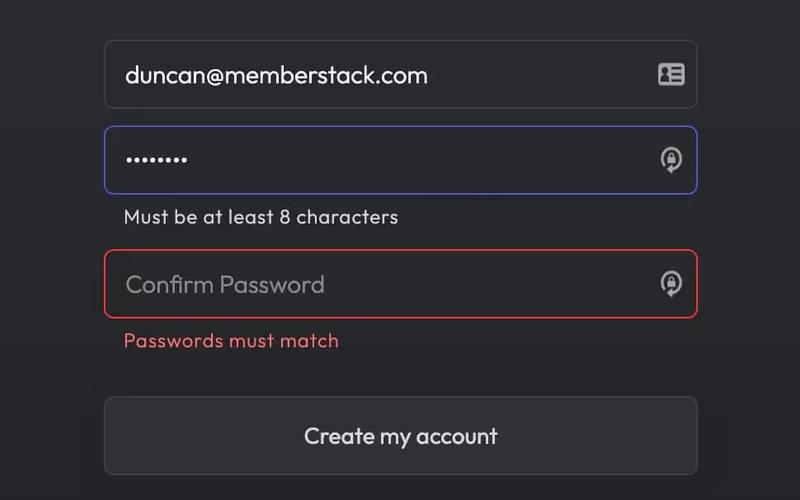
Confirm Password
View Component
TutorialSignup

Confirm Password

The Confirm Password component is designed to facilitate user account creation by ensuring that users enter their password correctly. It includes fields for email, password, and password confirmation, along with validation messages. Key Features Email and password input fields Real-time password validation Success and error messages upon form submission Responsive design suitable for various devices Customizable styles and classes Design Elements: Modern and clean layout Use of flexbox for alignment Color scheme featuring dark backgrounds with light text Rounded input fields and buttons Icon integration for visual appeal Potential Use Cases: User registration forms for websites and applicationsE-commerce platforms requiring account creation Membership sites needing secure user authentication Educational platforms for student sign-ups Any service that requires user account management Conclusion: The Confirm Password component is a versatile and user-friendly solution for any website or application that requires user registration, ensuring a smooth and secure onboarding process.
Hidden Password Field
View Component
TutorialSignup

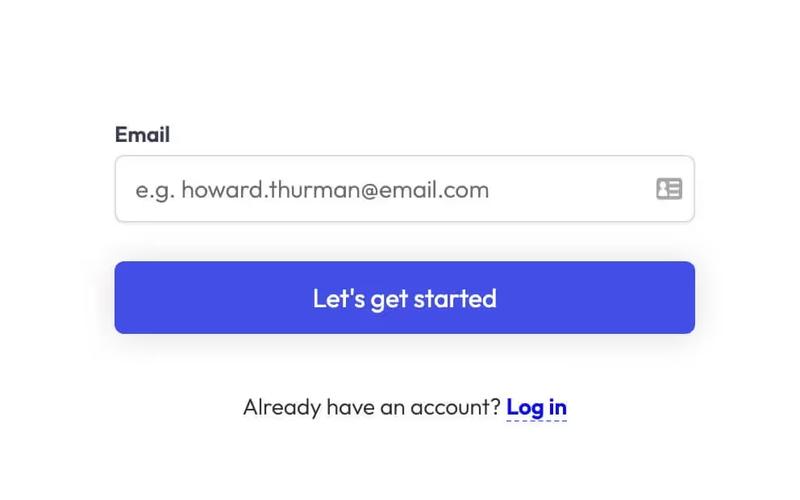
Hidden Password Field

The Hidden Password Field is a customizable form component designed to enhance user experience during sign-up processes by allowing users to reveal their password securely. It integrates seamlessly with email input fields and provides visual feedback based on user interactions. Key Features Responsive design suitable for various devices Includes email and password input fields with validation Success and error messages for user feedback Customizable styles and classes for branding Integration with Memberstack for user management Design Elements: Modern and clean layout Flexible color scheme with options for customization Utilizes smooth transitions for showing/hiding password Potential Use Cases: Web applications requiring user registrationE-commerce platforms needing secure user sign-up Membership sites that require user authentication Online services offering personalized accounts Educational platforms with user login features Conclusion: The Hidden Password Field is a versatile and user-friendly component ideal for enhancing sign-up forms, making it a valuable addition to any web application focused on user experience and security.

Show Password
View Component
TutorialLogin

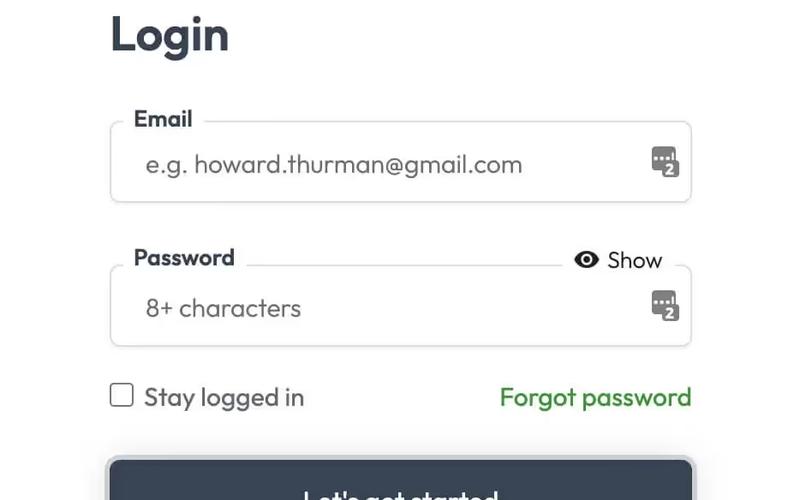
Show Password

The Show Password component is designed to enhance user experience during login by allowing users to toggle the visibility of their password input. This feature helps prevent input errors and improves accessibility. Key Features Toggle functionality for password visibility Responsive design suitable for various devices Customizable styles and classes Easy integration with Webflow forms Design Elements: Modern and clean layout Flexible color scheme with options for customization Use of icons for visual cues Responsive design elements that adapt to screen sizes Potential Use Cases: E-commerce websites requiring user login Membership sites with secure access Web applications with user authentication Blogs or content platforms with user accounts Corporate intranets needing secure login Conclusion: The Show Password component is a versatile and user-friendly tool that enhances the login experience, making it a valuable addition to any website requiring user authentication.

Showing 13 of 3 componentstagged with Tutorial

No website yet? Check out our free & paid pre-built template websites!

View templates