38 Components

Input Components

38 Webflow native input components with 1-click copy & paste from a library of 807+. Built for Memberstack integration.

Autocomplete Address Form
View Component
Input

Autocomplete Address Form

The Autocomplete Address Form is a user-friendly form component designed to streamline the process of entering address details by providing autocomplete suggestions. It enhances user experience by reducing input errors and speeding up form completion. Key Features Includes fields for Address, ZIP Code, City, Region, and Country.Provides success and error messages upon form submission.Responsive design suitable for various devices.Customizable input fields with placeholder options.Live preview available for testing. Design Elements Clean and modern layout with a flexible form structure.Utilizes a light color scheme with subtle borders and shadows.Labels are clearly defined with a margin for better readability.Input fields are styled with rounded corners and focus effects. Potential Use Cases E-commerce websites requiring shipping address collection.Real estate platforms for property inquiries.Event registration forms needing attendee address details.Subscription services that require user address verification.Contact forms for businesses that need location information. Conclusion: The Autocomplete Address Form is a versatile and efficient solution for any website needing address input, enhancing user experience while ensuring accurate data collection.

Increase & Decrease Select Value
View Component
Input

Increase & Decrease Select Value

This component allows users to easily increase or decrease a selected value from a dropdown menu using intuitive buttons. It enhances user experience by providing a visual and interactive way to select options. Key Features Interactive buttons to increase or decrease selection Responsive design suitable for various devices Includes success and error messages for form submissions Design Elements: Flexbox layout for alignment and spacing Rounded borders with a solid color scheme Custom styles for select dropdown and buttons Minimalistic design with clear visual cues Potential Use Cases: E-commerce websites for quantity selection Survey forms requiring numerical input Booking systems for selecting dates or times Educational platforms for quiz or test responses Conclusion: The Increase & Decrease Select Value component is a versatile tool that enhances user interaction on forms, making it ideal for various applications across different industries.

Animated Inset Label Inputs
View Component
Input

Animated Inset Label Inputs

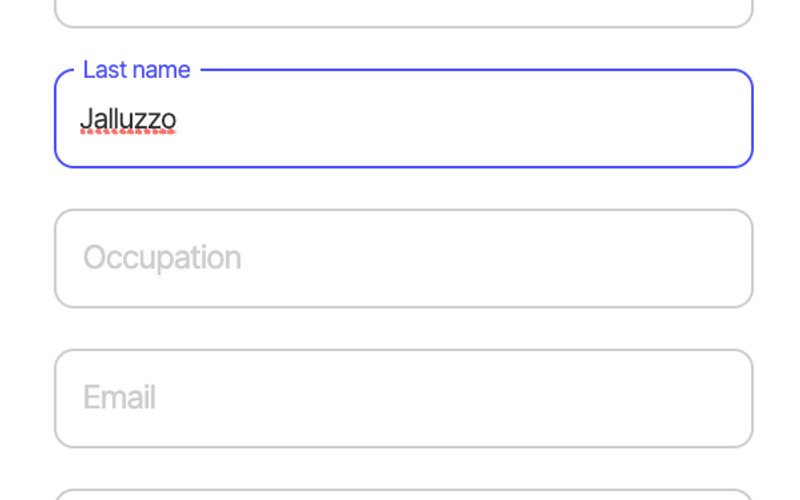
The Animated Inset Label Inputs component provides a modern and interactive form input design where labels animate into position when the user interacts with the input fields. This enhances user experience and visual appeal. Key Features Animated labels that move when input fields are focused or filled Includes multiple input types: text, email, and phone number Responsive design suitable for various screen sizes Customizable styles and animations Success and error messages for form submissions Design Elements Clean and minimalistic design Soft color palette with a focus on usability Rounded input fields with subtle border animations Labels transition smoothly to indicate focus and filled states Potential Use Cases Contact forms for businesses and service providers Sign-up forms for newsletters or memberships User registration forms for websites and applications Feedback or inquiry forms for customer support Event registration forms for workshops or seminars Conclusion: The Animated Inset Label Inputs component is a versatile and visually appealing solution for modern web forms, enhancing user interaction while maintaining a clean aesthetic.


Checkbox Toggle w/ Icon
View Component
InputCheckbox

Checkbox Toggle w/ Icon

The Checkbox Toggle w/ Icon is a stylish and interactive toggle switch designed for forms, featuring an icon and customizable styles. It enhances user experience by providing a clear visual indication of the toggle state. Key Features Customizable toggle switch with icon integrationCSS styles for smooth transitions and visual effects Responsive design suitable for various devices Easy to implement in Webflow projects Design Elements Rounded toggle background with a light color schemeIcon displayed within the toggle for enhanced visual appealSmooth transition effects when toggled Potential Use Cases Web forms requiring user preferences (e.g., newsletter subscriptions)E-commerce sites for toggling product options Mobile applications needing intuitive settings adjustments Interactive surveys and feedback forms Conclusion: The Checkbox Toggle w/ Icon is a versatile component that not only improves the aesthetic of forms but also enhances user interaction, making it a valuable addition to any Webflow project.

Conditional Logic Form
View Component
Input

Conditional Logic Form

This component utilizes tabs to control the visibility of questions in a form, ensuring that only relevant fields are required based on user input. It features conditional inputs that are marked as required only when visible. Key Features Tabs for dynamic question visibility Conditional input requirements based on visibility Customizable form fields including text inputs and text areas User-friendly design with clear labels and placeholders Responsive layout suitable for various devices Design Elements Modern and clean aesthetic Flexible grid layout Use of rounded corners and shadows for depth Colorful tab indicators for active selection Consistent typography and spacing Potential Use Cases Customer support forms for businesses Feedback collection forms for websites Registration forms with optional details Survey forms that adapt based on previous answers Contact forms for service inquiries Conclusion: The Conditional Logic Form is a versatile and user-friendly component that enhances user experience by simplifying form interactions and ensuring only relevant information is collected.

Dark File Upload
View Component
Input

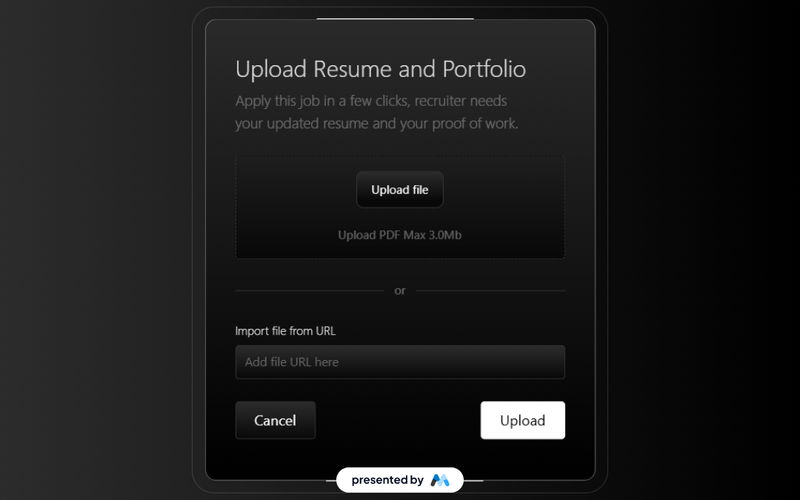
Dark File Upload

The Dark File Upload component is designed to facilitate file uploads in a visually appealing dark-themed interface. It allows users to upload files such as resumes and portfolios easily, with clear instructions and feedback on the upload process. Key Features File upload functionality with drag-and-drop support.Customizable upload limits and file types, such as PDF up to 3.0Mb.User-friendly prompts for file uploads, including placeholders for URLs.Success and error messages to inform users about the upload status. Design Elements Dark color scheme with contrasting white text for readability.Dashed border around the upload area to indicate interactivity.Flexbox layout for aligning elements vertically and horizontally.Responsive design elements that adapt to various screen sizes. Potential Use Cases Job application portals requiring resume submissions.Creative portfolios for artists and designers to showcase their work.Educational platforms for students to submit assignments.Corporate websites for employees to upload documents securely. Conclusion: The Dark File Upload component offers a functional and visually engaging solution for file uploads, making it suitable for various applications across different industries.

Date Range Input
View Component
Input

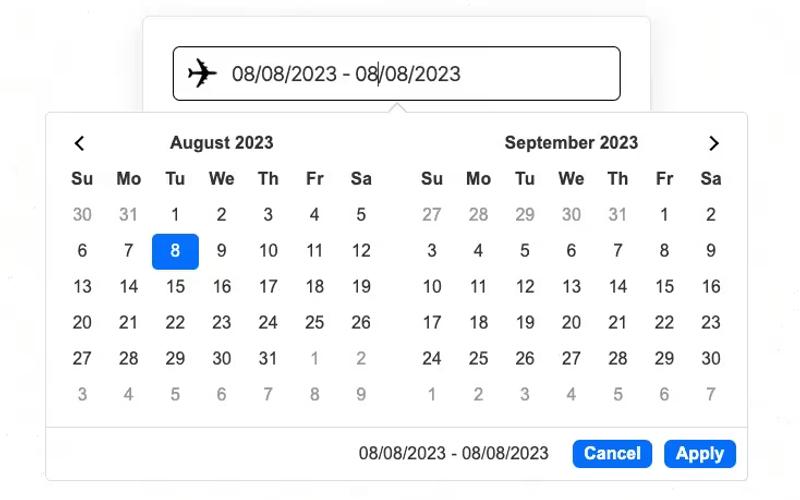
Date Range Input

The Date Range Input component allows users to select a range of dates through an intuitive interface, making it ideal for applications that require date filtering or booking functionalities. Key Features User-friendly date range picker Customizable placeholder and button text Supports integration with Memberstack for saving user inputs Responsive design suitable for various devices Includes error handling and success messages Design Elements: Clean and modern aesthetic Flexible layout Color scheme featuring blue accents and white backgrounds Rounded corners and subtle shadows for depth Potential Use Cases: Travel booking websites for selecting travel dates Event management platforms for filtering events by dateE-commerce sites for setting promotional periods Real estate listings to filter properties by availability Membership sites allowing users to save their preferences Conclusion: The Date Range Input component is a versatile tool that enhances user experience by simplifying date selection, making it a valuable addition for various web applications.

Distinct File Uploader
View Component
Input

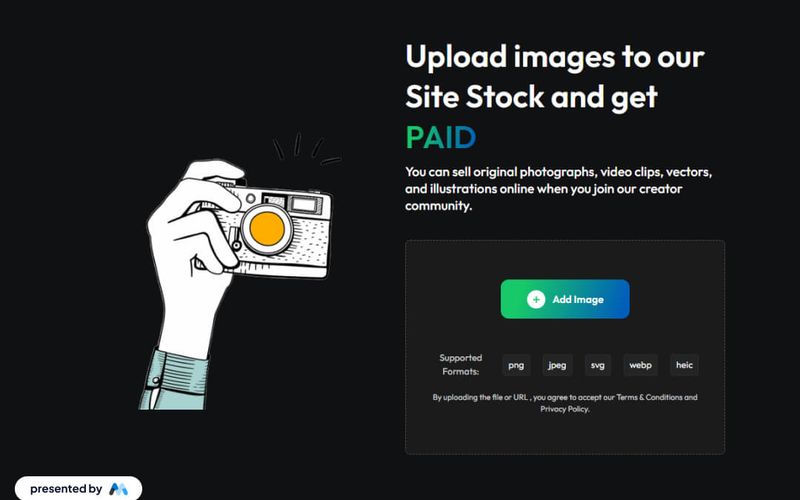
Distinct File Uploader

The Distinct File Uploader is a Webflow component designed to facilitate the uploading of various file types, particularly images, by users. It features a user-friendly interface that allows for easy file selection and submission, making it suitable for websites that require user-generated content. Key Features Supports multiple file formats including png, jpeg, svg, webp, and heic.Includes a form for user submissions with success and error messages.Responsive design that adapts to different screen sizes.Customizable styles for a unique look and feel. Design Elements Utilizes a clean layout with a focus on usability and accessibility.Incorporates a dashed border around the upload area to indicate interactivity.Employs a centered alignment for content, enhancing visual balance.Features a modern color scheme with contrasting text for readability. Potential Use Cases Photography websites where users can upload and sell their images.Creative portfolios that allow artists to share their work.E-commerce platforms that accept user-generated content.Community-driven sites that encourage user submissions. Conclusion: The Distinct File Uploader is a practical component for any Webflow project that requires file uploads, offering flexibility and ease of use for both developers and end-users.

Drag To Upload File Input
View Component
Input

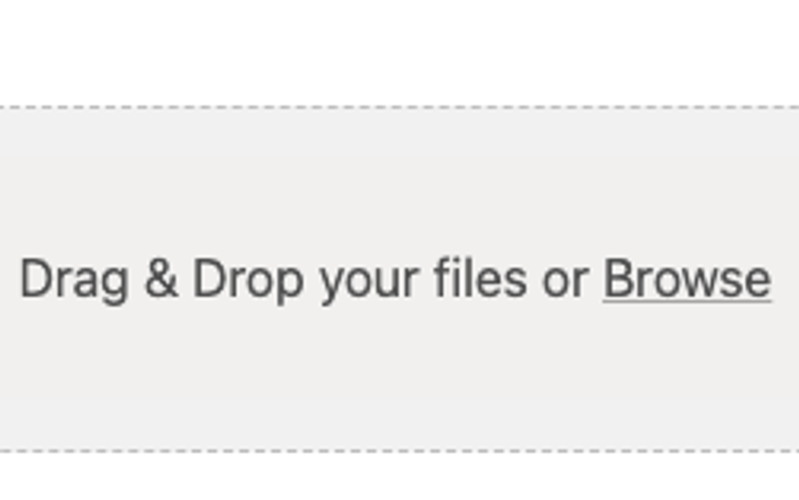
Drag To Upload File Input

The Drag To Upload File Input component allows users to easily upload files by dragging and dropping them into a designated area, enhancing user experience and interaction. Key Features Drag-and-drop functionality for file uploads Customizable styles with dashed borders and rounded corners Responsive design suitable for various devices Simple integration into existing Webflow projects Design Elements Dashed border style for visual indication of upload areaSoft background color for a clean and modern lookRounded corners to enhance aesthetics Potential Use Cases Web applications requiring user file uploads, such as document submission portals Creative portfolios where users can upload images or videosE-commerce sites allowing customers to upload product images Event registration forms needing file attachments, like resumes or cover letters Conclusion: The Drag To Upload File Input component is a versatile and user-friendly solution for file uploads, making it an excellent choice for various web applications and industries.

Drag and Drop Input
View Component
InputProfile

Drag and Drop Input

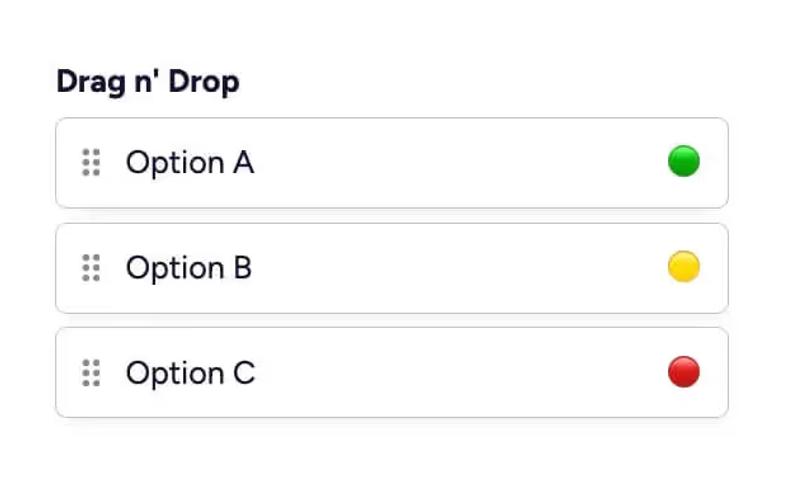
The Drag and Drop Input component allows users to easily reorder items through a drag-and-drop interface, enhancing user interaction in forms. It is designed to be intuitive and visually appealing. Key Features Drag-and-drop functionality for reordering items Customizable input fields with placeholder text Supports multiple options with visual indicators Includes instructional steps for implementation Responsive design suitable for various devices Design Elements: Clean and modern layout Colorful option indicators (green, yellow, red)Hover effects for interactive elements Use of icons for visual appeal Consistent padding and margins for a polished look Potential Use Cases: E-commerce websites for product sorting Survey forms requiring user preference ordering Event planning applications for task prioritization Customizable dashboards for user settings Educational platforms for arranging learning modules Conclusion: The Drag and Drop Input component is a versatile tool that enhances user experience by allowing intuitive item reordering, making it ideal for various applications across different industries.

File Upload Portal
View Component
Input

File Upload Portal

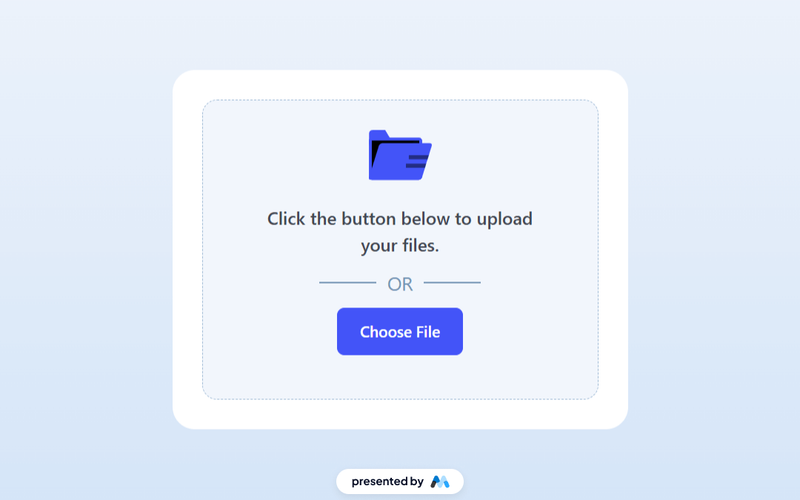
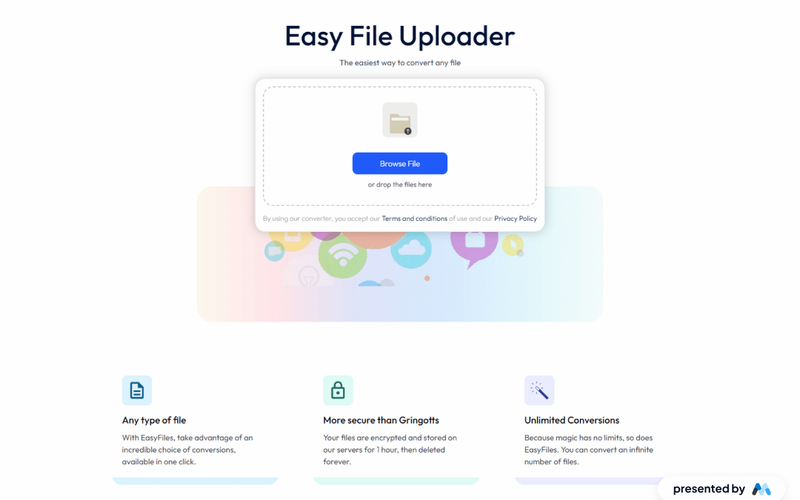
The File Upload Portal is a Webflow component designed to facilitate file uploads from users. It features a user-friendly interface that allows users to easily select and upload files, with visual feedback upon successful submission. The component includes a button for browsing files and displays messages for both successful and failed submissions. Key Features File upload functionality with a dedicated button for browsing files.Success and error messages to inform users about the status of their submission.Responsive design that adapts to different screen sizes.Customizable styles for buttons and messages. Design Elements Light color scheme with a gradient background for the upload section.Rounded corners on containers for a softer visual appearance.Centered layout that enhances user focus on the upload process. Potential Use Cases Web applications requiring user file submissions, such as job applications.E-commerce platforms that allow customers to upload product images.Educational websites where students can submit assignments.Event registration sites that need document uploads from attendees. Conclusion: The File Upload Portal is a practical component for any website needing file upload capabilities, providing essential features and a clean design that enhances user experience.

Image Upload Modal
View Component
Input

Image Upload Modal

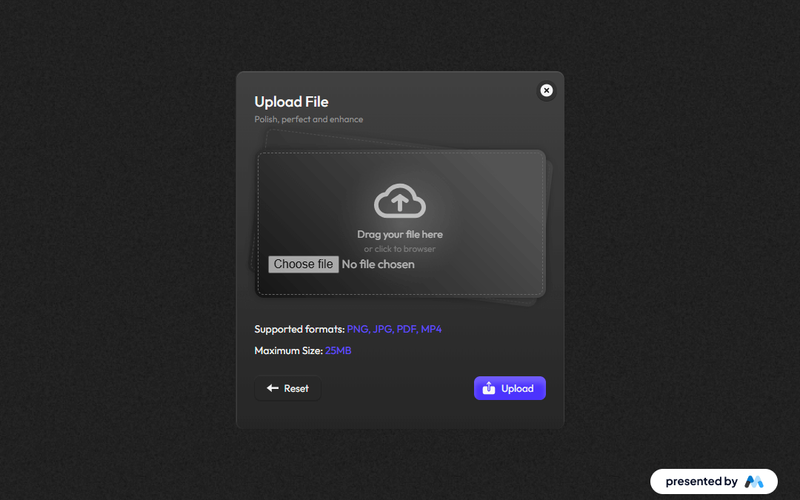
The Image Upload Modal is a user interface component designed to facilitate file uploads in web applications. It allows users to drag and drop files or click to browse their device for files to upload. The modal includes visual indicators for supported file formats and maximum file size, enhancing user experience. Key Features Drag and drop functionality for file uploads.Visual prompts for supported file formats: PNG, JPG, PDF, MP4.Maximum file size limit of 25MB.Success and error messages upon form submission.Reset and upload buttons for user interaction. Design Elements A clean layout with a dashed border indicating the upload area.Use of icons to represent upload actions, such as a cloud upload icon.Responsive design elements that adapt to various screen sizes.Color scheme featuring dark backgrounds with contrasting text for visibility. Potential Use Cases E-commerce websites allowing users to upload product images.Portfolio sites for artists and photographers to showcase their work.Document submission forms for educational institutions.Social media platforms enabling users to share multimedia content.Job application portals where candidates can upload resumes and cover letters. Conclusion: The Image Upload Modal is a practical component that enhances user interaction by simplifying the file upload process, making it suitable for various applications across different industries.

Input Option Pairs
View Component
Input

Input Option Pairs

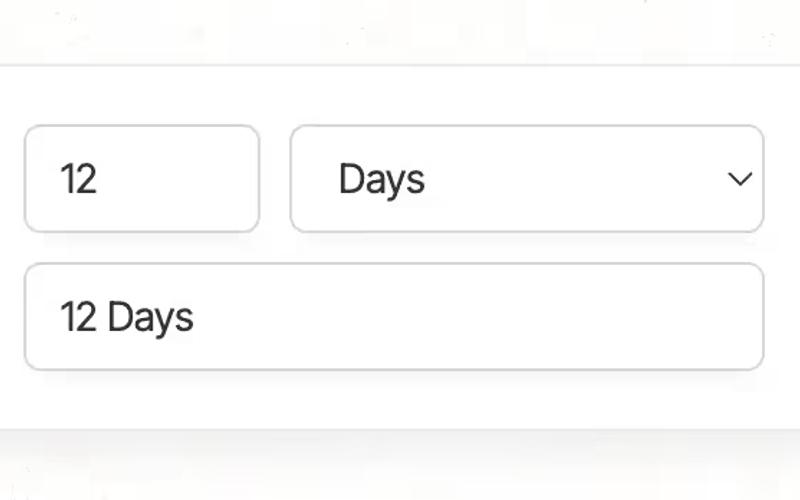
Input Option Pairs is a Webflow component designed to facilitate user input through a combination of text fields and selection options, allowing for dynamic data collection. Key Features Includes multiple input fields for user data entry (e.g., number and text inputs).Features a select dropdown for choosing time units (Days, Months, Years).Provides success and error messages upon form submission.Utilizes j Query for dynamic input handling and combining values.Responsive design suitable for various screen sizes.Design Elements: Clean and modern layout with a white background.Soft rounded corners and subtle shadows for input fields.Grid layout for aligning input fields and labels.Potential Use Cases: Event registration forms requiring date and time inputs.Surveys or feedback forms that need structured data collection.E-commerce sites for collecting user preferences.Educational platforms for course registration.Healthcare applications for appointment scheduling.Conclusion: Input Option Pairs is a versatile and user-friendly component that enhances data collection processes, making it ideal for various applications across different industries.

Input with Shared Borders
View Component
InputProfile

Input with Shared Borders

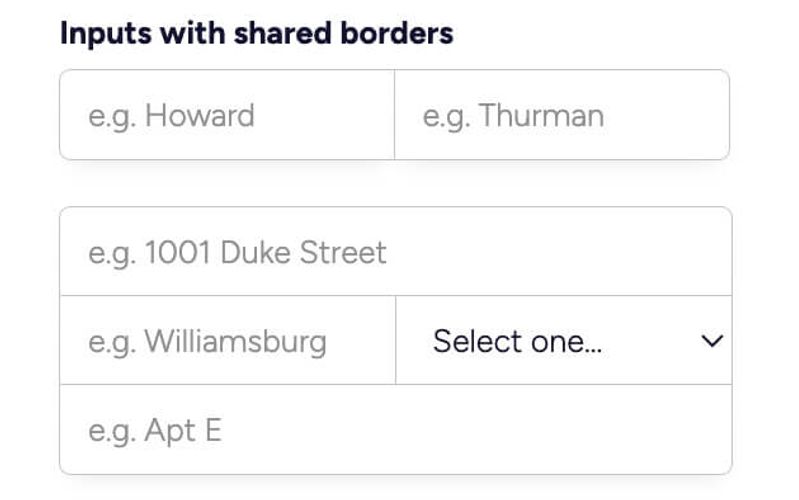
This component features a set of input fields designed with shared borders, providing a cohesive and modern look for forms. It is ideal for enhancing user experience in data entry scenarios. Key Features Includes multiple input fields with shared borders for a unified appearance.Responsive design that adapts to various screen sizes.Customizable placeholders and labels for each input.Supports various input types including text and select dropdowns.Easy integration into existing Webflow projects. Design Elements Minimalist style with a clean white background.Soft rounded corners for a modern aesthetic.Subtle box shadow for depth and emphasis.Color scheme primarily using shades of blue and gray. Potential Use Cases Contact forms for businesses and service providers.Registration forms for events or memberships.Surveys and feedback forms for customer insights.E-commerce checkout forms to streamline user input.Lead generation forms for marketing campaigns. Conclusion: The Input with Shared Borders component is a versatile and visually appealing solution for any form-related needs, making it a valuable addition to any Webflow project.

International Phone Number Input
View Component
Input

International Phone Number Input

The International Phone Number Input component is designed to facilitate the entry of phone numbers with international dialing codes, ensuring a user-friendly experience for global users. Key Features Supports multiple international dialing codes (e.g., CA, GB, US)Required input field for phone numbers Customizable styles for better integration into various designs Responsive design suitable for mobile and desktop Design Elements Flexbox layout for easy alignmentRounded borders with a subtle shadow for a modern lookFont-weight styling for labels to enhance readability Potential Use Cases E-commerce websites requiring customer contact information Travel and tourism platforms for booking and inquiries Global service providers needing to collect international phone numbers Mobile applications that require user registration with phone verification Conclusion: The International Phone Number Input component is versatile and essential for any web application targeting a global audience, providing both functionality and aesthetic appeal.

Media Upload Zone
View Component
Input

Media Upload Zone

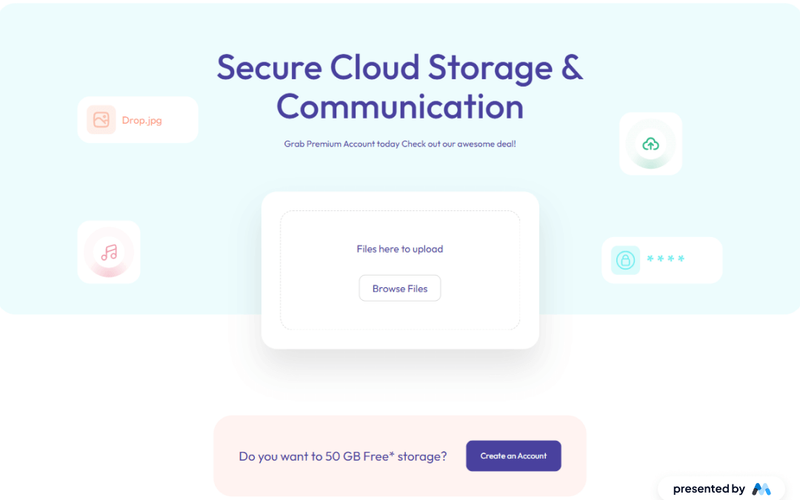
The Media Upload Zone is a Webflow component designed to facilitate file uploads through a user-friendly interface. It includes features such as a file input area, success and error messages, and customizable buttons, making it suitable for various applications. For instance, users can upload images or documents directly from their devices. Key Features File upload functionality with a dedicated input area for users to select files.Success and error messages to inform users about the status of their uploads.Customizable button text for actions like 'Upload' or 'Create an Account'.Responsive design that adapts to different screen sizes. Design Elements A clean layout with a focus on usability, featuring a central upload area.Use of icons to represent different file types, enhancing visual communication.Color scheme that includes light backgrounds with contrasting text for readability.Rounded corners on containers for a softer visual appeal. Potential Use Cases E-commerce websites allowing customers to upload product images.Portfolio sites where artists can submit their work.Corporate websites for employees to upload documents securely.Event registration forms that require file submissions, such as resumes or cover letters. Conclusion: The Media Upload Zone component offers a practical solution for file uploads, making it a valuable addition to any Webflow project that requires user interaction for document submissions.

Membership Checkbox
View Component
InputUnstyled+1

Membership Checkbox

The Membership Checkbox is a user interface component designed to facilitate user consent for membership agreements or terms. It includes a checkbox and associated labels for clarity. Key Features Includes a checkbox input for user consent Accompanied by inline labels for better user understanding Customizable attributes for integration with membership systems Lightweight and easy to implement in forms Design Elements Simple and clean designUses standard checkbox stylingResponsive layout suitable for various devices Potential Use Cases Membership-based websites requiring user agreementE-commerce platforms needing consent for terms and conditions Online communities that require user registration and consent Subscription services that need user acknowledgment Conclusion: The Membership Checkbox is a versatile and essential component for any web application that requires user consent, making it a valuable addition to forms across various industries.

Membership Checkbox Groups
View Component
InputUnstyled

Membership Checkbox Groups

The Membership Checkbox Groups component allows users to create customizable checkbox options for membership forms, facilitating user selections in a structured manner. Key Features Multiple checkbox options for user selection Customizable labels for each checkbox Integration with Memberstack for user data management Responsive design suitable for various devices Design Elements Clean and minimalistic layoutSimple color scheme that can be customizedIntuitive form structure for ease of use Potential Use Cases Membership websites requiring user preferences Event registration forms with multiple options Surveys or feedback forms needing user choicesE-commerce sites for product selection criteria Non-profit organizations collecting member interests Conclusion: The Membership Checkbox Groups component is versatile and user-friendly, making it an excellent choice for any website that needs to gather user preferences efficiently.

Membership Input
View Component
InputUnstyled

Membership Input

The Membership Input component is designed to facilitate user input for membership-related forms, allowing for seamless data collection from users. Key Features Text input field for user data entry Customizable attributes including maxlength and placeholder Supports required and autofocus options Integrates with membership systems via data attributes Design Elements Simple and clean layoutResponsive design suitable for various devicesMinimalistic style with focus on functionality Potential Use Cases Membership registration forms for clubs or organizations User sign-up forms for online services Event registration forms requiring user information Subscription forms for newsletters or content access Conclusion: The Membership Input component is versatile and user-friendly, making it an excellent choice for any application that requires user data collection for memberships or subscriptions.

Membership Radio Button
View Component
UnstyledInput

Membership Radio Button

The Membership Radio Button component is designed to facilitate user selection through radio buttons, allowing for easy input of membership options. It features a clean and straightforward layout for user interaction. Key Features Includes multiple radio button options Customizable input attributes for integration with membership systems User-friendly interface for selecting membership types Supports required field validation Design Elements: Minimalist design with clear labelsResponsive layout suitable for various devicesSimple color scheme that can be customizedPotential Use Cases: Membership-based websites (gyms, clubs, etc.)Subscription services requiring user input for plans Event registration forms where attendees select optionsE-commerce sites offering membership tiers Conclusion: The Membership Radio Button component is versatile and user-friendly, making it an excellent choice for any website that requires membership selection or similar input options.

Membership Select
View Component
UnstyledInput

Membership Select

The Membership Select component is designed to facilitate user selection within a membership context, allowing users to choose from multiple options seamlessly. Key Features Dropdown selection with customizable options Includes a label for clear user guidance Integrates with membership systems via data attributes User-friendly interface for selecting membership choices Design Elements Simple and clean layoutResponsive design suitable for various devicesMinimalist aesthetic with a focus on usability Potential Use Cases Membership-based websites looking to streamline user selectionsE-commerce platforms offering subscription services Online communities requiring user tier selections Event registration forms that need attendee options Educational platforms with course selection features Conclusion: The Membership Select component is a versatile tool that enhances user experience by simplifying the selection process, making it ideal for various membership-related applications.

Membership Text Area
View Component
InputUnstyled

Membership Text Area

The Membership Text Area is a user-friendly component designed for collecting text input from users, ideal for membership forms or feedback submissions. Key Features Includes a label for clear user guidance.Supports a maximum character limit of 5000.Customizable placeholder text for user prompts.Integrates with membership systems via data attributes. Design Elements Simple and clean layout with a focus on usability.Responsive design suitable for various devices.Neutral color scheme that can blend with different website styles. Potential Use Cases Membership registration forms for clubs or organizations.Feedback collection for services or products.Comment sections for blogs or articles.Survey forms for user insights.Contact forms for customer inquiries. Conclusion: The Membership Text Area is a versatile and essential component for any website looking to enhance user interaction through text input, making it suitable for a wide range of applications.

Modern File Upload
View Component
Input

Modern File Upload

The Modern File Upload component is designed to facilitate easy file uploads on websites. It allows users to upload files through a simple interface, with options for drag-and-drop functionality and a traditional file selection button. This component is ideal for developers looking to enhance user interaction on their sites. Key Features Drag-and-drop file upload functionality for user convenience.Traditional file selection button for users who prefer it.Responsive design that adapts to various screen sizes.Success and error messages to inform users about their submission status.Customizable styles to match the website's branding. Design Elements Utilizes a clean and straightforward layout for ease of use.Incorporates a color scheme that can be customized to fit the website's theme.Includes icons for visual representation of file upload actions.Responsive design ensures usability across devices, from desktops to mobile. Potential Use Cases E-commerce websites needing file uploads for product images.Portfolio sites where users can submit their work.Educational platforms allowing students to submit assignments.Service-based websites requiring document uploads from clients.Event registration sites where attendees can upload files. Conclusion: The Modern File Upload component is a practical solution for any website requiring file upload capabilities, offering both functionality and ease of use.

Multi Select Field With Search
View Component
Input

Multi Select Field With Search

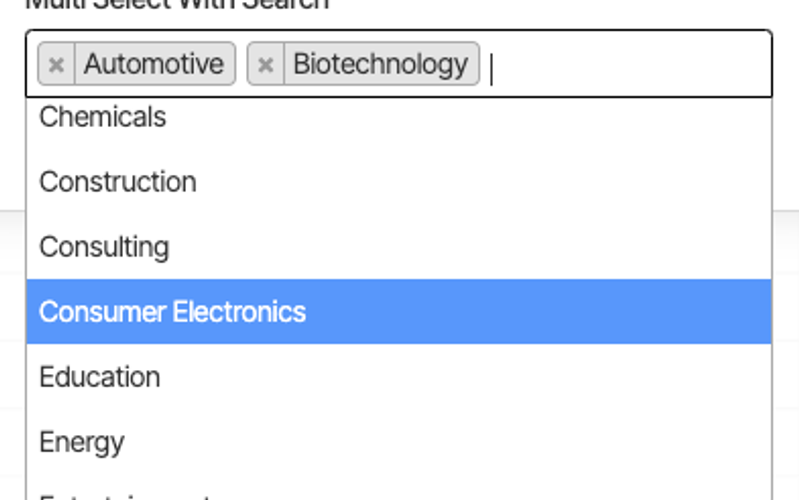
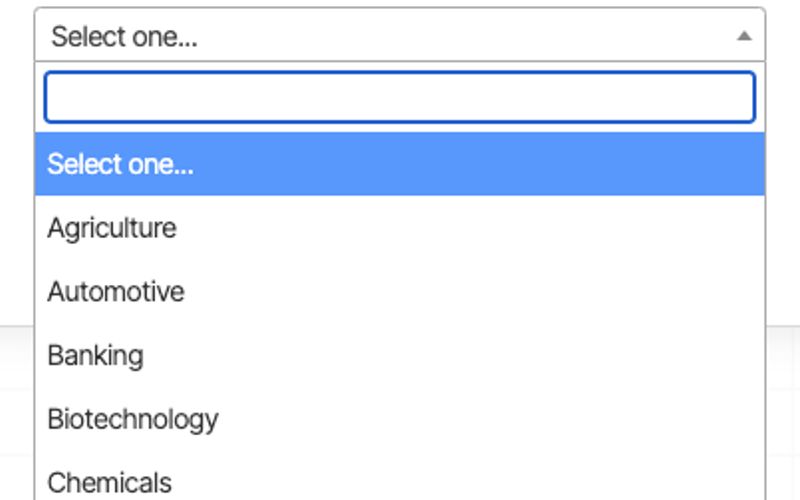
The Multi Select Field With Search component allows users to select multiple options from a dropdown menu while providing a search functionality to easily find specific items. It is designed for enhanced user experience in forms. Key Features Multi-select capability Search functionality for quick option retrieval Customizable options for various industries User-friendly interface Responsive design Design Elements Rounded corners with a subtle background colorBold font for labelsMargin spacing for clear separation between fields Potential Use Cases Job application forms where candidates can select multiple skillsE-commerce sites allowing customers to choose multiple product categories Event registration forms for selecting multiple interests or sessions Surveys requiring multiple responses from a list of options Educational platforms for course selection Conclusion: The Multi Select Field With Search component is a versatile tool that enhances form usability, making it ideal for various applications across different industries.

OPT Input
View Component
InputPasswordless+1

OPT Input

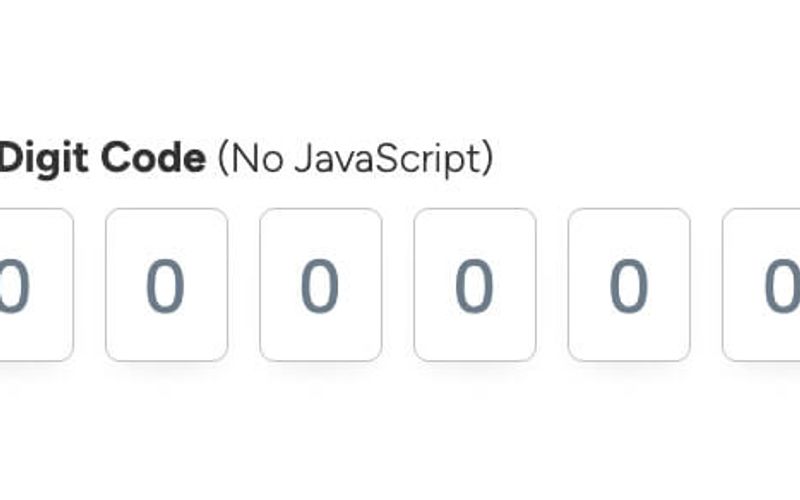
The OPT Input component is designed for capturing a 6-digit code input from users, featuring a clean and modern interface without the need for JavaScript functionality. Key Features 6-digit code input field Customizable CSS for hover and focus states Responsive design suitable for various devices Required field validation Placeholder text for user guidance Design Elements Minimalistic layout with a focus on usability Light text styling for clarity Subtle hover effects with border color changes Flexible input field dimensions Potential Use Cases Two-factor authentication forms Online verification processes Membership or subscription sign-up forms Secure access to sensitive information Event registration requiring confirmation codes Conclusion: The OPT Input component is versatile and user-friendly, making it an excellent choice for any application that requires secure code entry while maintaining a sleek design.

Price Range Picker
View Component
Input

Price Range Picker

The Price Range Picker is a user-friendly component designed to allow users to select a price range using a slider interface. It includes input fields for precise price entry and a submit button for searching. Key Features Interactive price range slider with adjustable min and max values Input fields for manual price entry Responsive design suitable for various devices Success and error messages for form submission feedback Integration with Memberstack for saving user preferences Design Elements: Modern and clean layout with rounded corners Color scheme featuring shades of blue and white Clear labels for input fields Hover and focus effects on input fields and buttons Potential Use Cases: E-commerce websites looking to enhance product filtering options Real estate platforms for property price searches Travel booking sites for budget range selection Event ticketing services allowing users to set price limits Subscription services offering tiered pricing plans Conclusion: The Price Range Picker is a versatile and visually appealing component that enhances user experience by simplifying price selection, making it an excellent addition for various online platforms.

Profile Image
View Component
ProfileInput

Profile Image

The Profile Image component is designed to display user avatars with an option to change them, making it ideal for personal profiles or user accounts. Key Features Displays a circular profile image with a customizable avatar.Includes a 'Change Avatar' link for user interaction.Responsive design with auto width and height settings.Centered alignment for a clean presentation. Design Elements Circular image with a border-radius for a soft appearance.Light gray background color for the image placeholder.Compact size of 56px by 56px for a neat layout. Potential Use Cases Social media platforms for user profiles.E-commerce websites for customer accounts.Online forums or community sites for member avatars.Corporate websites for employee profiles.Blogging platforms for author images. Conclusion: The Profile Image component is versatile and user-friendly, making it an essential element for any platform that requires user representation.

Radio Cards
View Component
InputProfile

Radio Cards

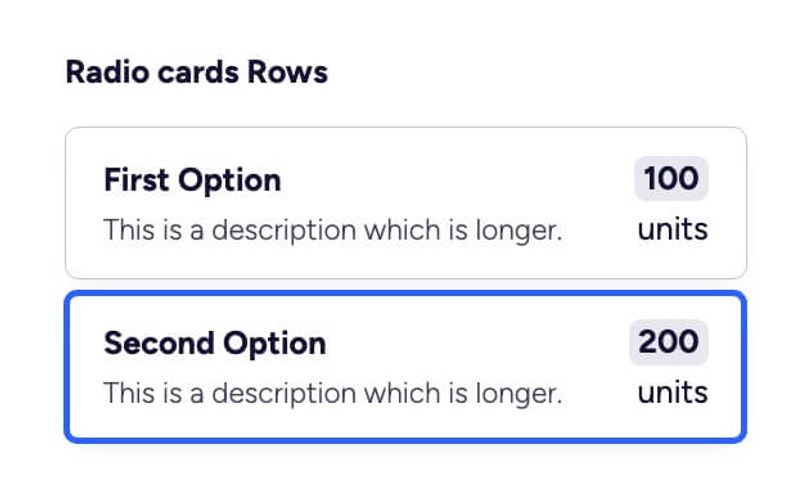
Radio Cards is a versatile Webflow component designed for creating interactive radio button selections within forms. It features a clean layout and customizable styles to enhance user experience. Key Features Customizable radio button options Integrated form labels and descriptions Responsive design suitable for various devices Includes custom CSS for enhanced styling Easy integration into existing Webflow projects Design Elements Modern and clean visual style Soft color palette with shades of blue and gray Rounded corners and subtle shadows for depth Clear typography with emphasis on labels and options Potential Use Cases Surveys and feedback forms for businesses Product selection forms for e-commerce sites Event registration forms requiring user preferences Interactive quizzes and assessments User preference settings in web applications Conclusion: Radio Cards is a highly adaptable component that enhances form interactivity, making it an excellent choice for a variety of applications across different industries.

Radio Menu
View Component
InputProfile

Radio Menu

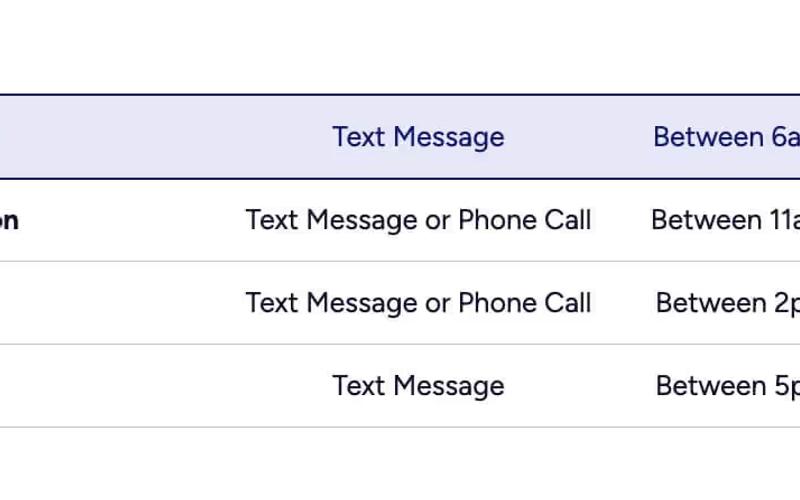
The Radio Menu is a versatile form component designed for user input through radio buttons, allowing users to select options in a visually appealing format. It features customizable labels and a structured layout for easy integration into forms. Key Features Customizable radio button options.Responsive design suitable for various screen sizes.Includes custom CSS for enhanced styling and interaction effects.Easy integration into existing Webflow projects.Design Elements: Clean and modern layout with a white background.Use of rounded corners for a softer appearance.Color scheme includes shades of blue and gray for a professional look.Flexbox layout for responsive alignment of radio buttons and labels.Potential Use Cases: Event registration forms requiring time slot selection.Surveys or feedback forms where users choose a preferred contact method.Booking systems for appointments or services.E-commerce sites for selecting delivery options.Conclusion: The Radio Menu is a highly adaptable component that enhances user interaction in forms, making it an excellent choice for various applications across different industries.

Radio Pill Buttons
View Component
ProfileInput

Radio Pill Buttons

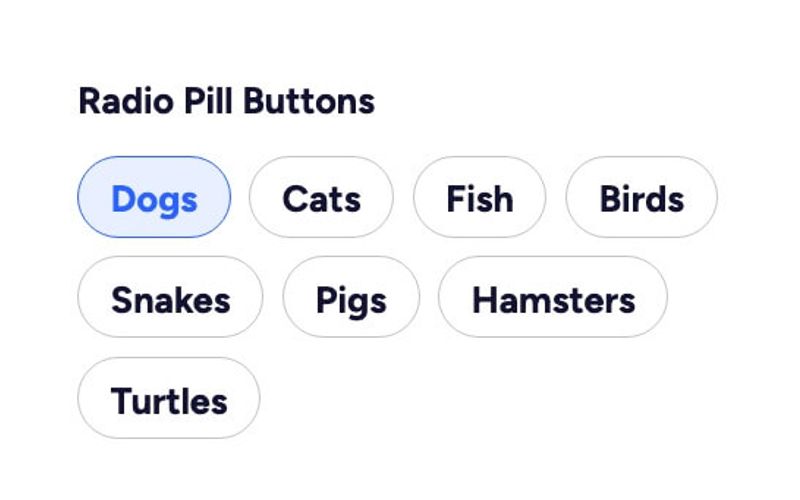
Radio Pill Buttons is a customizable radio button component designed for Webflow, allowing users to create visually appealing and interactive forms. It features a modern pill shape and can be styled with custom CSS. Key Features Customizable radio button styles using CSSSupports multiple options (e.g., Dogs, Cats, Fish, etc.)Interactive design with hover effects Video tutorial available for customization guidance Responsive design suitable for various devices Design Elements Pill-shaped buttons for a modern lookColorful hover effects with custom CSSClear typography for labelsFlexible layout with grid and flexbox Potential Use Cases Pet adoption websites for selecting pet types Surveys and feedback forms requiring user preferencesE-commerce sites for product options Event registration forms with multiple choices Interactive quizzes and polls Conclusion: Radio Pill Buttons offer a stylish and functional solution for form inputs, enhancing user experience while maintaining a clean aesthetic. Their versatility makes them suitable for various applications across different industries.
Radio Table
View Component
InputProfile

Radio Table

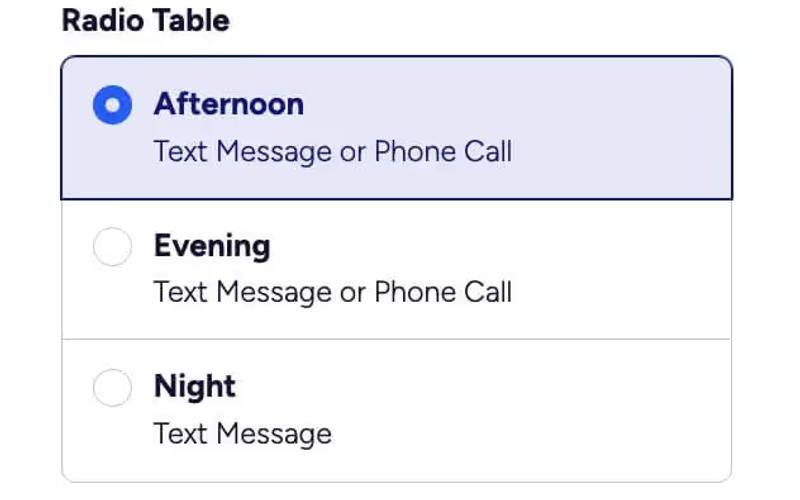
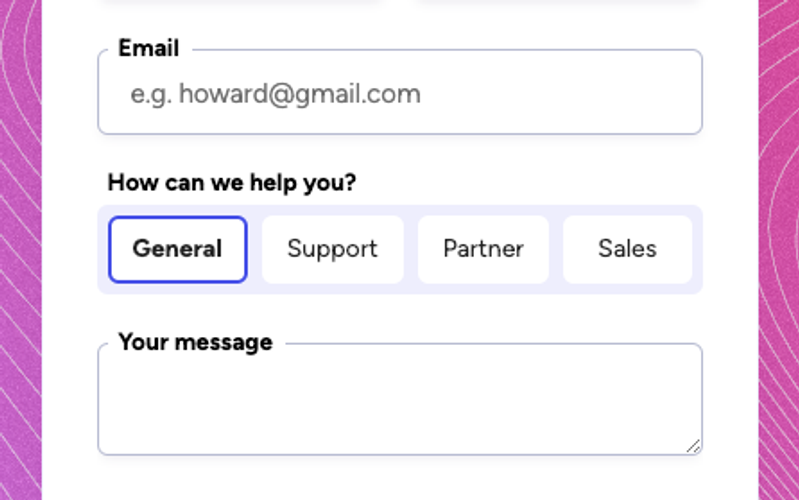
The Radio Table component is designed for creating interactive radio button selections within forms, allowing users to choose from multiple options. It features a clean and modern layout suitable for various applications. Key Features Customizable radio button options Responsive design that adapts to different screen sizes.Includes custom CSS for enhanced styling and user interaction.Easy integration into existing forms with minimal setup.Design Elements: Flexbox layout for easy alignment and spacing.Bold typography for labels with a modern color palette.Subtle hover and focus effects for improved user experience.Rounded corners and borders for a polished look.Potential Use Cases: Event registration forms where users select preferred time slots.Surveys or feedback forms requiring specific options.Booking systems for services that require time selection.E-commerce sites for selecting delivery preferences.Conclusion: The Radio Table component is versatile and user-friendly, making it an excellent choice for any form requiring radio button selections. Its modern design and customization options enhance user engagement.

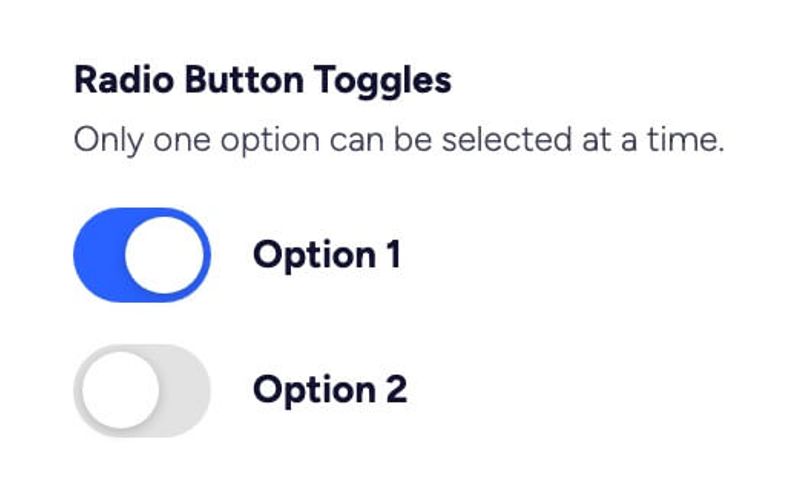
Radio Toggle Buttons
View Component
InputProfile

Radio Toggle Buttons

The Radio Toggle Buttons component allows users to select one option from a set of choices, providing a clear and interactive way to make selections. It is designed with custom CSS for enhanced visual appeal. Key Features Single selection functionality Custom CSS styling for enhanced aesthetics Responsive design suitable for various devices Includes help text for user guidance Interactive elements with animations Design Elements Modern and clean design Rounded toggle buttons Colorful background with smooth transitions Use of icons for visual cues Lightweight and minimalistic layout Potential Use Cases Web applications requiring user input selection Forms for surveys or feedback collectionE-commerce sites for product options Interactive quizzes or assessments User settings or preferences configuration Conclusion: The Radio Toggle Buttons component is versatile and visually appealing, making it an excellent choice for any web project that requires user interaction through option selection.

Select Field With Search
View Component
Input

Select Field With Search

The Select Field With Search component allows users to easily select options from a dropdown menu while providing a search functionality for quick access to specific items. Key Features Includes a searchable dropdown for efficient selection Supports a wide range of options across various industries Customizable styling with a clean and modern design Responsive design suitable for all devices Design Elements Rounded corners with a subtle background colorFont-weight styling for labels to enhance readabilityConsistent margin spacing for a neat layout Potential Use Cases Ideal for forms in e-commerce websites to select product categories Useful for service-based businesses to filter service types Applicable in educational platforms for course selection Great for job application forms to choose industries Conclusion: The Select Field With Search component is a versatile tool that enhances user experience by simplifying the selection process, making it suitable for a variety of applications across different industries.

Time Picker Input
View Component
Input

Time Picker Input

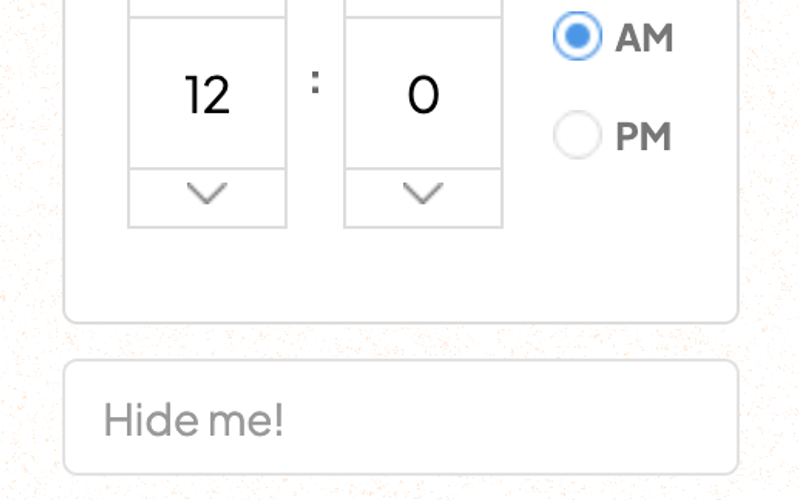
The Time Picker Input is a user-friendly component designed for web forms, allowing users to easily select and input time values. It integrates seamlessly with forms and enhances user experience with a visually appealing interface. Key Features Customizable time selection with spinbox input type Responsive design suitable for various devices Includes success and error messages for form submissions Easy integration with Memberstack for profile fields Includes external libraries for enhanced functionality Design Elements Clean and modern design with rounded corners Color scheme featuring shades of blue and whiteCSS styles for input fields and buttons to ensure consistency Responsive layout that adapts to different screen sizes Potential Use Cases Web applications requiring time tracking features Event scheduling platforms Online booking systems Custom forms for user profiles in membership sites Time management tools for businesses Conclusion: The Time Picker Input is a versatile and visually appealing component that can significantly enhance user interaction in web forms, making it an excellent choice for developers looking to implement time selection features.

Toggle Checkbox
View Component
InputCheckbox

Toggle Checkbox

The Toggle Checkbox is a customizable form component designed to enhance user interaction with a visually appealing toggle switch. It allows users to easily switch between two states, making it ideal for various applications. Key Features Customizable toggle design with CSSResponsive and user-friendly interface Supports checkbox functionality with labels Includes transition effects for smooth interaction Lightweight and easy to integrate into existing forms Design Elements Rounded toggle background with a smooth color transition Floating toggle dot that moves when toggled Minimalistic design suitable for modern web applications Custom CSS for further styling options Potential Use Cases E-commerce websites for user preferences (e.g., newsletter subscriptions)Web applications requiring user settings toggles Forms that need to capture binary choices (yes/no)Mobile applications for quick user interactions Dashboard interfaces for toggling features on/off Conclusion: The Toggle Checkbox is a versatile and stylish component that enhances user experience by providing a clear and interactive way to make selections. Its customizable nature makes it suitable for a wide range of applications.

Toggle Input
View Component
InputCheckbox

Toggle Input

The Toggle Input component is a customizable checkbox that allows users to toggle options on or off. It features a modern design with a smooth transition effect. Key Features Customizable toggle switch with CSS styling Responsive design suitable for various devices Includes optional description text Easy integration into forms Interactive label for better user experience Design Elements Rounded toggle switch designColorful background transitions when toggledClear and bold label textMinimalistic and clean layout Potential Use Cases Web applications requiring user preferences Forms for subscription servicesE-commerce sites for product options Settings pages for user account management Surveys and feedback forms Conclusion: The Toggle Input component is versatile and visually appealing, making it an excellent choice for enhancing user interaction in various web applications.

hCaptcha Dark
View Component
SignupInput

hCaptcha Dark

The hCaptcha Dark component integrates with hCaptcha to provide secure and spam-free forms for your website, enhancing user experience and security. Key Features Easy integration with h Captcha for form security Dark mode design for modern aesthetics Responsive layout suitable for various devices Customizable appearance to match website branding Design Elements Dark color scheme for a sleek lookMinimalist design with a focus on functionalityPositioned elements for optimal user interaction Potential Use Cases E-commerce websites needing secure checkout forms Blogs and content sites wanting to prevent spam comments Corporate websites requiring secure contact forms Event registration pages to filter out bots Any website looking to enhance form security and user trust Conclusion: The hCaptcha Dark component is a versatile solution for enhancing form security while maintaining a stylish, modern design, making it suitable for a wide range of applications.

hCaptcha Light
View Component
SignupInput

hCaptcha Light

hCaptcha Light is a Webflow feature designed to enhance form security by utilizing hCaptcha technology, effectively reducing spam submissions and improving user experience. Key Features Integrates hCaptcha for enhanced securityReduces spam submissionsImproves overall user experienceEasy to implement within WebflowDesign Elements: Minimalist design with a focus on functionality Responsive layout with a maximum width of 302px Subtle opacity effects for text elements Potential Use Cases: E-commerce websites needing secure checkout forms Contact forms for service-based businesses Newsletter sign-up forms for blogs and publications User registration forms for online platforms Feedback forms for customer service Conclusion: h Captcha Light is a versatile and essential component for any Webflow site looking to enhance form security while maintaining a user-friendly interface.

Showing 1–38 of 38 componentstagged with Input

No website yet? Check out our free & paid pre-built template websites!

View templates